Integrations
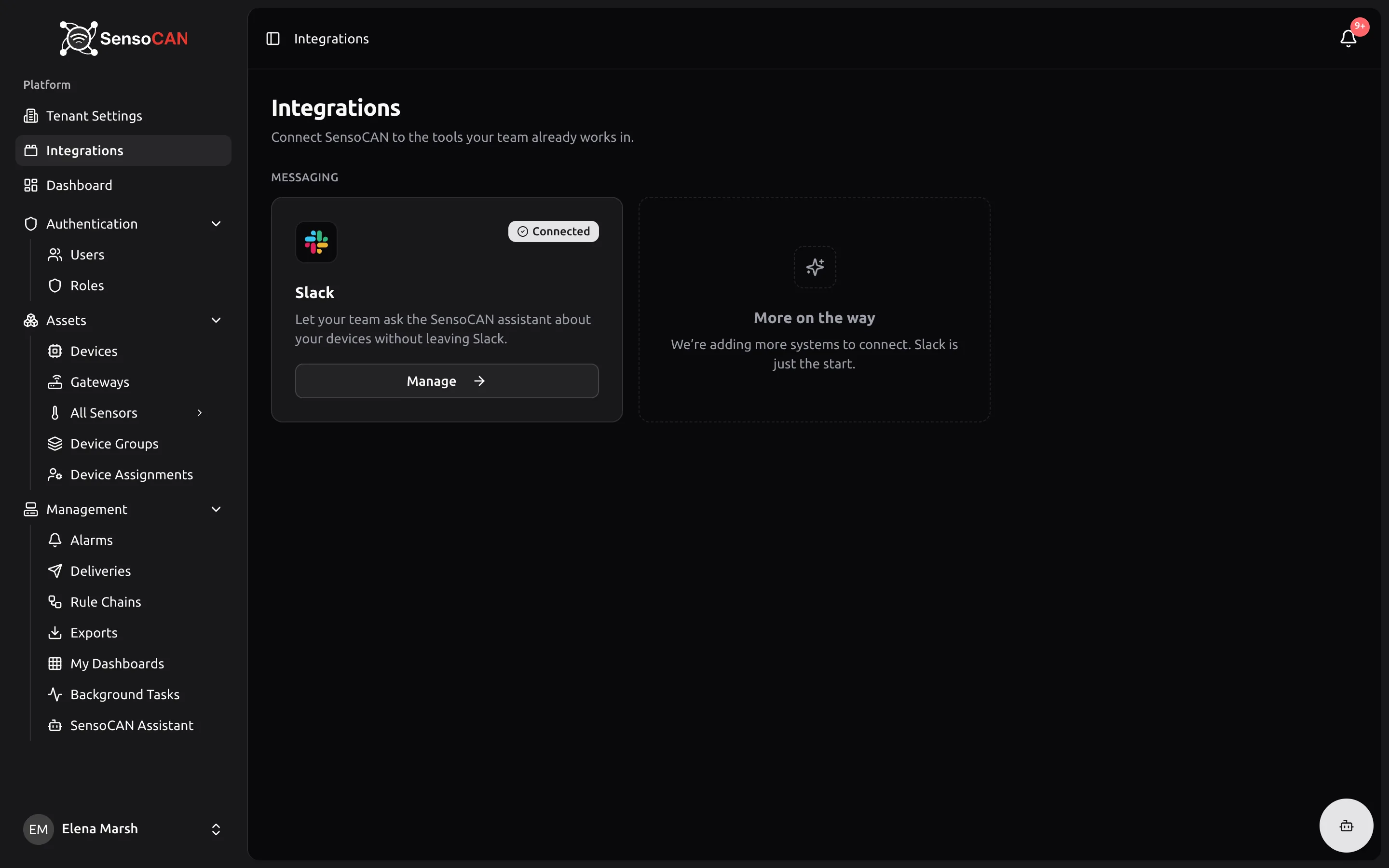
Platform → Integrations is where you connect SensoCAN to the tools your team already works in. The page is titled Integrations — "Connect SensoCAN to the tools your team already works in."
Each connection appears as a card in a category, with a status badge reading Connected, Action required or Not connected, and an action button that says Set up, Manage or View depending on where the connection stands and what you are allowed to do. Today one integration is available, Slack, in the Messaging category, alongside a placeholder card that reads "More on the way — We're adding more systems to connect. Slack is just the start."
The Integrations entry only appears in the sidebar for people who may view at least one integration. Someone who cannot see any is told "No integrations available — You don't have access to any integrations yet. Ask an administrator to grant you access." The Admin role holds the Slack permissions by default; see Roles and permissions.
Connecting Slack
Open the Slack card to reach the Slack integration page: "Connect your organization's Slack workspace so your team can ask the SensoCAN assistant about your devices from Slack."
Press Connect Slack and you are sent to Slack's own consent screen, where you approve the SensoCAN app for your workspace. It asks for three things only: to post messages, to read direct messages sent to it, and to be mentioned. You need to finish the authorisation within 10 minutes — you can simply start again if it expires.
Coming back, you are told "Slack is now connected to" your workspace name. A few refusals are possible, and each says what to do:
- "The Slack installation was cancelled." — you declined on Slack's screen.
- "Slack could not complete the installation. Please try again."
- "This Slack workspace is already connected to another organization." — a workspace can serve one SensoCAN organisation.
- "Disconnect your current Slack workspace before connecting a different one." — an organisation can have one workspace.
- "Organization-wide Slack installations are not supported. Please install the app into a single workspace."
Once connected, the page shows a Workspace connection card with the connected workspace, its workspace ID, when it was connected and who connected it — plus a Next steps card reminding you of the second half of the job: "Each person then links their own account from Settings → Linked accounts."
What Slack gives your team
The Slack connection is about the SensoCAN assistant. Once the workspace is connected and a person has linked their own account, they can direct-message the SensoCAN bot, or mention it in a channel it has been added to, and ask about their devices in plain language without leaving Slack.
Answers over Slack are governed by exactly the same rules as the assistant on the web: the asker needs the AI Assistant permission, and every answer is limited to the devices and data that person is allowed to see. Replies in Slack are written short and plain, and a long answer is split across several messages. See AI assistant for what the assistant can be asked.
Connecting Slack does not send alarm notifications to Slack. It enables the assistant to answer questions there.
Reconnecting and disconnecting
The card's status changes to Action required if Slack revokes access, reports the workspace as inactive, or the app is removed from your workspace. The page names which of the three happened and offers Reconnect Slack.
Disconnect asks you to confirm — "Disconnect Slack? The assistant will stop answering in Slack, and everyone in your organization will need to link their account again after reconnecting." — and then revokes the connection.
Linked accounts
Connecting the workspace is an administrator's job. Linking a personal account is each user's own, from Settings → Linked Accounts — "Chat with the assistant from Slack or WhatsApp. Only accounts you link here can reach your data." Every signed-in user has this page; no permission is needed.
Each card shows Linked or Not linked, with an Unlink button when it is linked. One identity can be linked per service, and linking again replaces the previous one.
- Slack — only available once your organisation has connected a workspace; otherwise the card reads "Your organization hasn't connected Slack yet." Get code shows a one-time code to send to the SensoCAN bot in Slack, along with which workspace it will link into. The code is shown once, so if you lose it press New code.
- WhatsApp — enter your phone number, press Send code, and confirm the six-digit code that arrives by WhatsApp.
Messages from a Slack account or phone number that has not been linked get a reply pointing the sender back to Settings → Linked Accounts. Full instructions are in Account settings.