Organisation settings
Settings that apply to your whole organisation live under Platform → Tenant Settings in the sidebar. Only the Admin role holds the permissions for this area by default; anyone else is told "You do not have permission to view tenant information."
Tenant Information
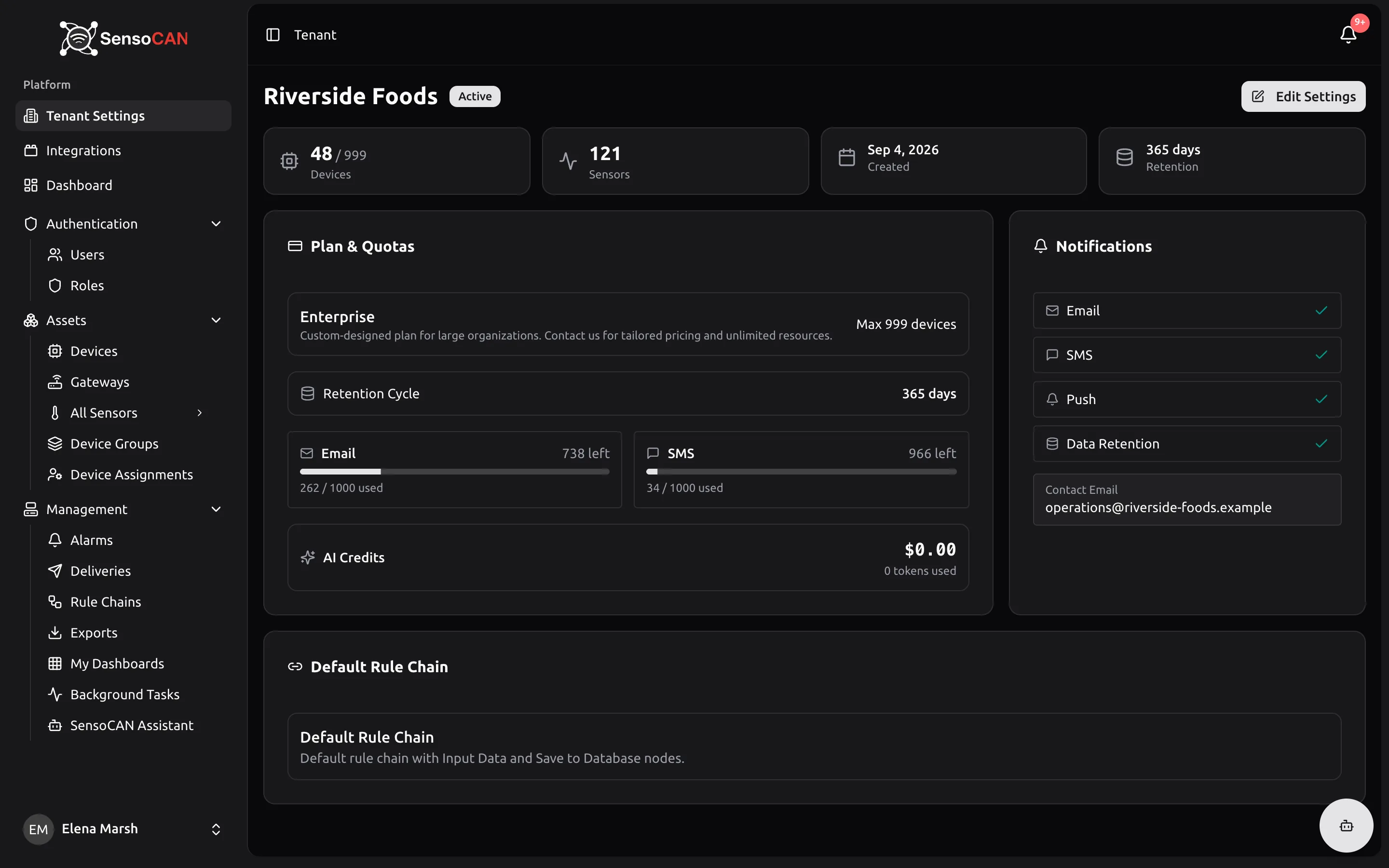
The landing page, Tenant Information, is read-only. It shows your organisation's name with a status badge next to it, your current usage of devices and sensors, the date your organisation was created, which notification channels are switched on, the contact email address, and which rule chain new device data goes through by default.
If you hold the permission to edit, an Edit Settings button in the header takes you to the editable form.
Editing the settings
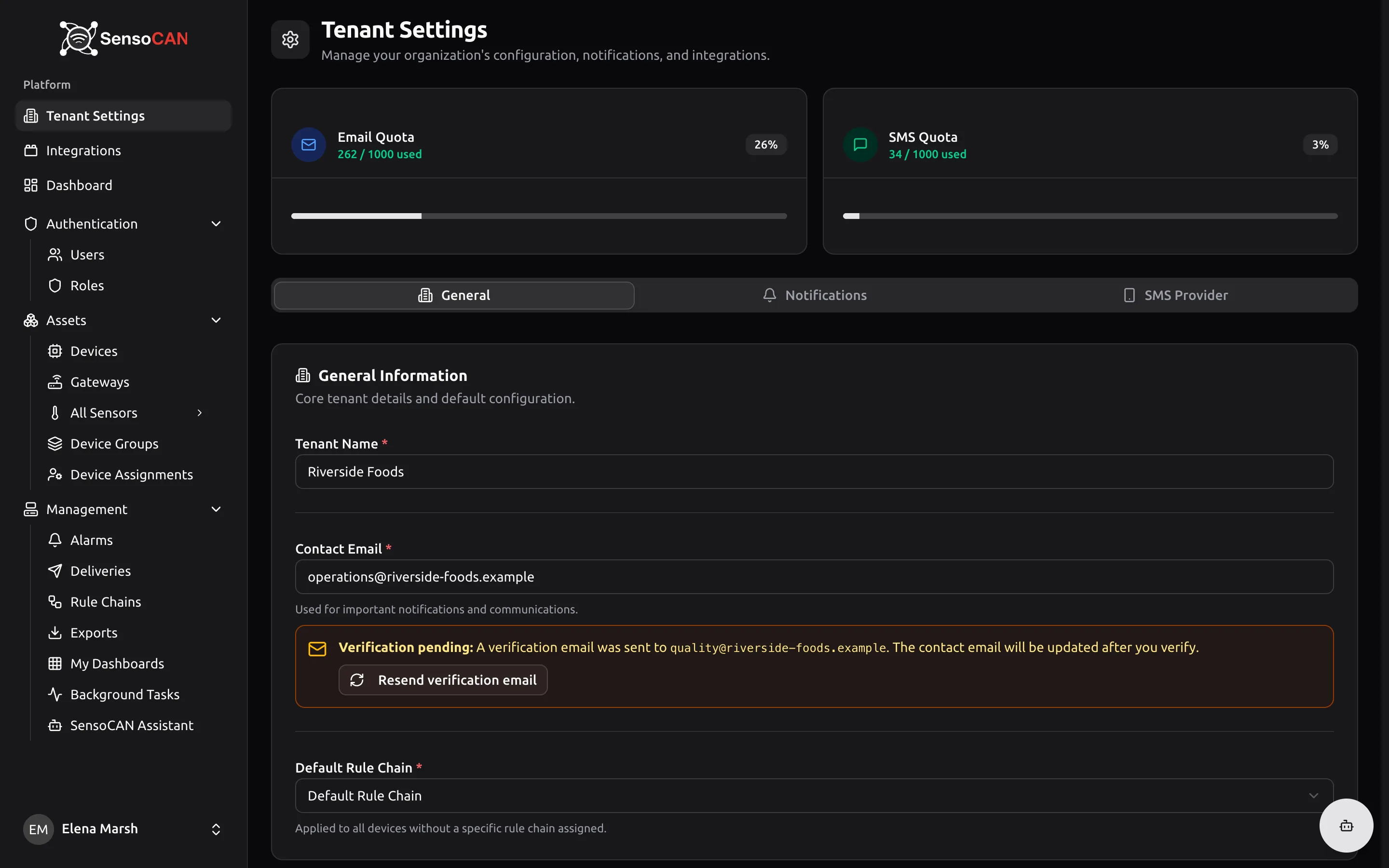
The edit form has three tabs.
General
"Core tenant details and default configuration."
- Name — your organisation's name as it appears throughout SensoCAN.
- Contact Email — the address SensoCAN uses to reach your organisation. Changing it requires confirmation: a verification link is emailed to the new address, and the change only takes effect once someone clicks it. Until then the page shows Verification pending with the address you asked for and a Resend button. The resend has a short cooldown, and the button shows a countdown until it is available again.
- Default rule chain — the rule chain applied to incoming device data when nothing more specific is set. It must be one of your own active rule chains.
Notifications
Four switches control which channels your organisation may use at all. Turning one off stops that channel for everybody, whatever an individual alarm or rule is configured to do.
- Email Notifications — sends alerts by email.
- Push Notifications — "Send push alerts to mobile devices".
- WhatsApp Notifications — "Send alert notifications via WhatsApp".
- Data Retention Alerts — "Email alerts before data is deleted by retention policy".
SMS Provider
"Configure your SMS delivery provider. Credentials are encrypted at rest."
SensoCAN sends text-message alerts through your own SMS account rather than a shared one. Pick your provider from the list and fill in the credentials it asks for — the exact fields differ by provider, and typically include an account identifier, a secret and the number or sender name messages come from. Credentials you have already saved are not asked for again on later saves, and choosing no provider clears what was stored.
Test connection checks the credentials you have saved and reports success or failure inline. Its description explains the one thing to watch for: "Checks the credentials you have saved. Add a number to also send a real test message, which your provider will charge for." Testing is limited to a few attempts per minute.
Finally, an SMS Notifications switch turns the channel on. It stays disabled, with a note telling you to select a provider above, until a provider has been configured.
Saving any tab confirms with "Tenant settings updated successfully".
If your account is restricted
SensoCAN can place an organisation into a restricted state — on hold, suspended or cancelled. When that happens, every page for every user in your organisation is replaced by a single account status page, and any background request the app makes answers "Your account is currently restricted. Please contact support." Signing in from the mobile app is refused with the same message.
The status page explains which state you are in:
- Account On Hold — "Your account has been placed on hold. Access to the dashboard is temporarily restricted."
- Account Suspended — "Your account has been suspended. Access to all services is currently disabled."
- Account Cancelled — "Your account has been cancelled. Please contact support if you wish to reactivate."
All three end with the same advice — "Please contact our support team to resolve this issue and restore access to your account" — and offer a Contact Support button and a way to log out.
Your devices keep reporting throughout. Device data continues to be accepted and stored while an organisation is restricted; it is the people who lose access to the screens, not the hardware. Nothing is lost while you sort the account out.
Contacting support from inside SensoCAN
The Contact Support button on the account status page opens a short form: a Message of up to 5,000 characters and an optional Attachment of up to 10 MB — "Max 10MB. PDF, DOC, images, or text files." Sending it emails the SensoCAN support team, with your organisation and your name on the subject line so they know who is writing.
The same form appears on SensoCAN's error page, and there it attaches the error's reference code automatically, which saves you describing what went wrong. Any signed-in, email-verified user can send a support request. SensoCAN replies by email — there is no ticket history inside the application.