Roles and permissions
Every user in your organisation holds exactly one role, and that role is what decides which pages they can open and which buttons they see. On top of the role, an administrator can grant a single person a few extra permissions individually — see Users.
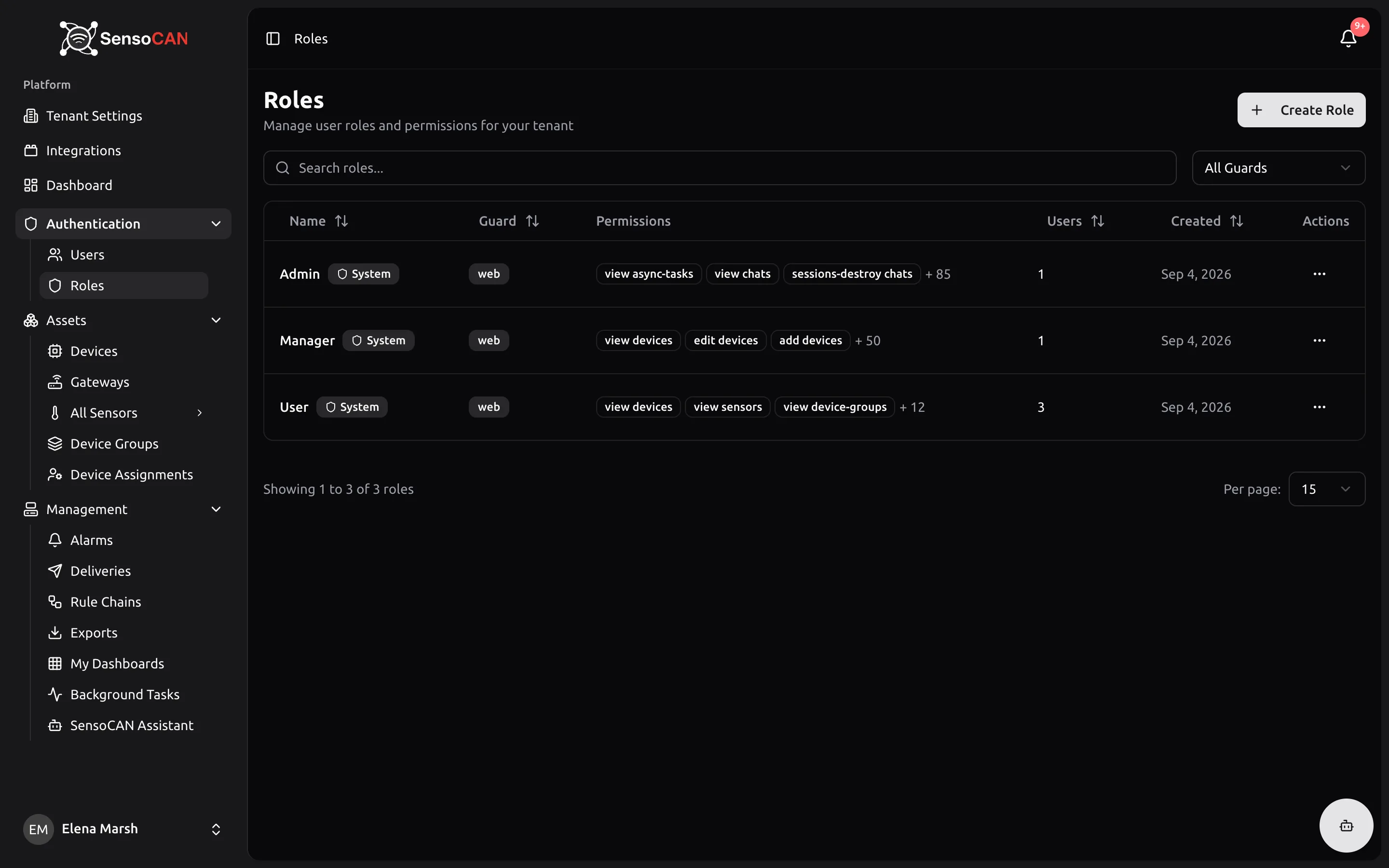
You manage roles from Authentication → Roles — "Manage user roles and permissions for your tenant". Only the Admin role can open it by default.
The three built-in roles
Every organisation is created with three roles: Admin, Manager and User. They carry a shield icon and a System badge in the list, and they cannot be renamed, re-permissioned or deleted. Their menu items read Edit (Protected) and Delete (Protected), and opening either explains that you can clone the role instead to get an editable copy.
Permissions are organised into groups. Here is exactly what each built-in role holds:
| Permission group | Admin | Manager | User |
|---|---|---|---|
| Devices | Full | Full | View only |
| Gateways | Full | — | — |
| Device Assignments | Full | — | — |
| Sensors | Full | Full | View only |
| Sensor profiles | Full | Full | — |
| Device Groups | Full | Full | View and export |
| Sensor Types | Full | — | — |
| Rule Chains | Full | — | — |
| Alarms | Full | Full | View only |
| Deliveries | Full | Full | — |
| Sensor data exports | Full | Full | Own exports only |
| Exports | Full | Full | View, create, download |
| Dashboard | Full | Full | Full |
| My Dashboards | Full | Full | Full |
| AI Assistant | Full | — | — |
| Background Tasks | Full | — | — |
| Users | Full | View only | — |
| Roles | Full | — | — |
| Organisation settings | Full | — | — |
| Slack | Full | — | — |
Read across the row rather than counting boxes. A few consequences are easy to miss:
- A Manager can run the day-to-day monitoring operation — devices, sensors, groups, alarms, deliveries, exports and dashboards — but cannot touch gateways, rule chains, sensor types, device assignments, organisation settings, integrations, background tasks or the AI assistant. They can see the user list but cannot add, edit or remove anyone.
- A User can look at devices, sensors, groups and alarms, and can build their own dashboards and request exports. They cannot acknowledge an alarm — acknowledging settles it for the whole organisation, so it sits with Managers and Admins. They can see only the sensor-data exports they requested themselves, and they cannot delete an export.
- Only an Admin holds gateways, rule chains, organisation settings, integrations, background tasks, the AI assistant and user or role management.
What each permission group unlocks
The role editor groups permissions by the thing they guard. In plain terms:
Devices — the Devices pages: viewing, adding, editing and deleting devices, bulk edits, changing a device's status, its connection credentials, its notification recipients, and registering, editing or retiring the beacons a gateway relays. Health read-outs for a gateway sit here too. See Devices.
Gateways — the Gateways page. Viewing gateways lets you open a gateway's command drawer and run the read-only commands. Managing gateways is the stricter half: it is what allows the write commands and the network and connection read-outs. It is deliberately its own group so that a Manager holding everything about devices does not silently inherit the ability to reconfigure a gateway. See Gateways and beacons.
Device Assignments — the Device Assignments page, where you decide which users can see which devices, including the bulk assignment tools.
Sensors — viewing, adding, editing and deleting sensors, bulk edits, and clearing a sensor's recorded data.
Sensor profiles — viewing and editing the thresholds and monitoring parameters attached to a sensor.
Device Groups — the Device Groups pages: viewing, creating, editing and deleting groups, and exporting a group's data.
Sensor Types — the Sensor Types reference list.
Rule Chains — the Rule Chains pages: viewing, creating, editing, deleting and testing rule chains, and assigning or unassigning them to devices.
Alarms — the Alarms page. Viewing shows the list; editing is what allows an alarm to be acknowledged.
Deliveries — the Deliveries log, the record of notification messages that were sent and what happened to them.
Sensor data exports — requesting an export of sensor readings, and seeing exports. There are two levels of visibility: your own exports, or every export in the organisation.
Exports — the Exports page itself: listing export jobs, creating them, downloading the finished files and deleting them.
Dashboard — the main Dashboard under the Platform group in the sidebar.
My Dashboards — the dashboards people build for themselves: viewing, creating, editing and deleting them.
AI Assistant — the AI Assistant page, and the assistant's replies in Slack and WhatsApp. Deleting a saved chat session is a separate permission in the same group. What the assistant will actually answer is further limited by the asker's own permissions — see AI assistant.
Background Tasks — the Background Tasks page, where long-running jobs report their progress.
Users — everything on the Users page: viewing, adding, editing, deleting, bulk deleting, restoring and permanently deleting accounts, and impersonating a user.
Roles — this page: viewing, creating, editing, cloning and deleting roles.
Organisation settings — the Tenant Settings pages: viewing your organisation's details, editing them, and re-sending the confirmation email when the contact address changes. See Organisation settings.
Slack — the Slack integration: seeing whether a workspace is connected, and connecting, reconnecting or disconnecting it. See Integrations.
The Integrations entry in the sidebar has no permission of its own. It appears as soon as a user may view at least one integration, which today means the Slack permission.
Creating a custom role
You cannot edit a built-in role, so the way to get a role that is "Manager plus gateways" or "User without exports" is to clone the nearest built-in role and adjust the copy.
From the row menu or the role's detail page, choose Clone. The dialog explains that this creates a new editable copy with all of the original's permissions. The copy is named after the original with "(Copy)" appended — "(Copy 2)" and so on if that name is taken — and SensoCAN drops you straight onto its edit screen so you can rename it and tick or untick permissions. It is never itself a system role, so you keep full control of it.
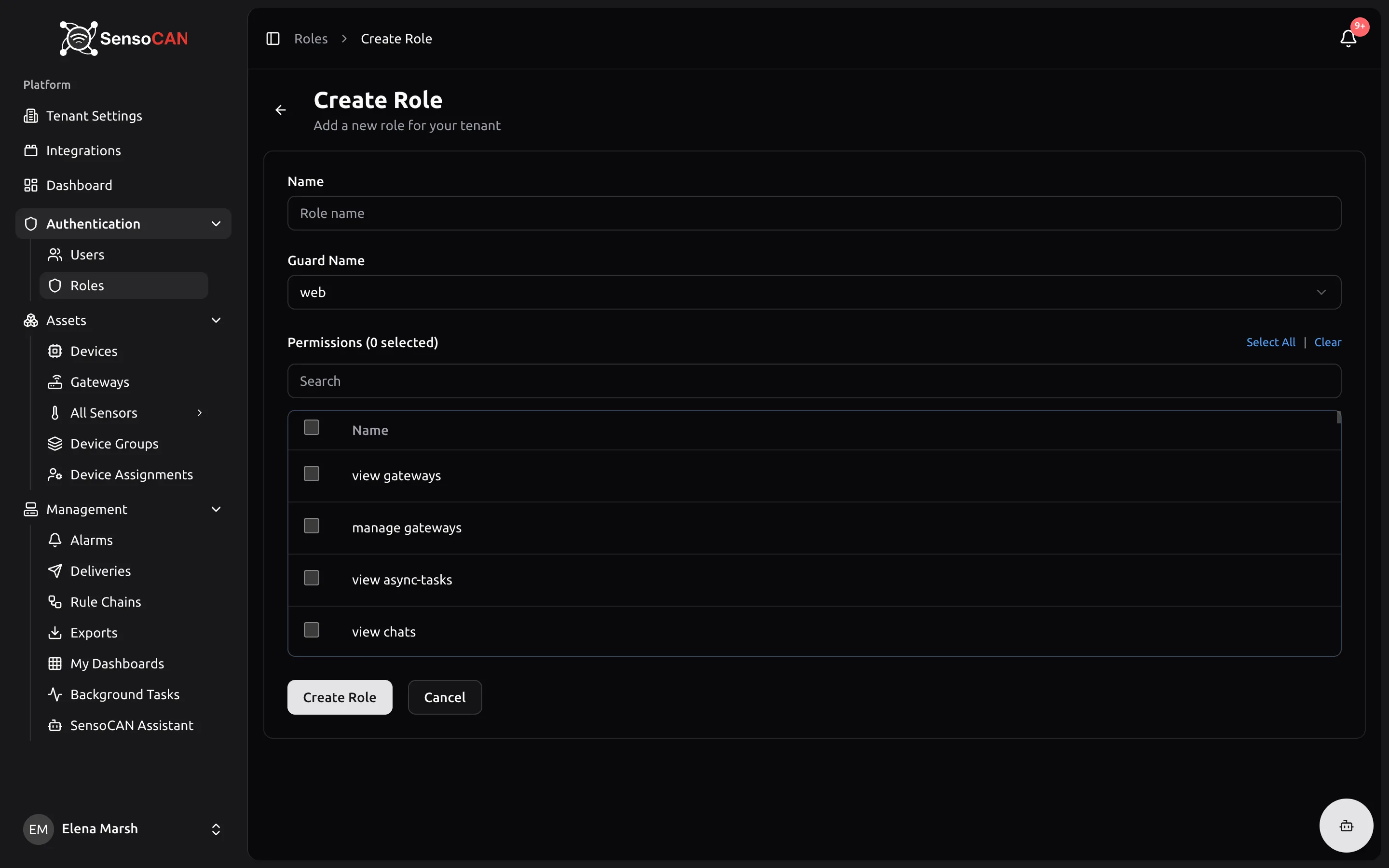
Create Role builds one from nothing instead: "Add a new role for your tenant". You give it a name, unique within your organisation, and pick permissions from a searchable list. There is also a Guard Name selector; leave it on web, which is what the SensoCAN web application uses.
A role's detail page — "View role details and assigned permissions" — shows its name, its type (System or Custom), how many users hold it and when it was created, together with every permission it grants, grouped by the resource they apply to.
Deleting a custom role is refused while anyone still holds it: "The role cannot be deleted because it is currently assigned to N user(s). Please reassign these users to a different role first." Move those people to another role first, then delete.
Extra permissions for one person
Sometimes one person needs one more capability and a whole new role would be overkill. On the Edit User screen there is a Permissions picker that grants individual permissions on top of the role. It only lists permissions the role does not already include, so anything you tick there is genuinely additional. These extras follow the person, not the role, and they survive a change of role — so review them if you move someone between roles.
How device assignment interacts with permissions
Permissions decide what kind of thing you can do. Device assignment decides which devices you do it to, and the two are enforced independently.
An ordinary user who holds the permission to view devices does not see every device in your organisation. They see the devices that have been assigned to them on the Device Assignments page, and nothing else — their device list, their sensors, their dashboards and the assistant's answers are all narrowed to that set. Grant someone the permission to view devices and forget to assign any, and their Devices page will simply be empty.
The exception is your organisation's System Admin account, which sees every device regardless of assignment. Ordinary Admin-role users are subject to assignment like everyone else, so when you promote someone to Admin, check their device assignments too.