Ask SensoCAN
The AI Assistant answers questions about your own data in plain language. Instead of opening a page, filtering it and reading a chart, you can ask for what you want and get the answer back as text.
It is a reporting tool, not a control panel. It looks things up and can request an export for you; it never changes a device, a sensor or a rule.
Here is a real exchange, start to finish.
Show me device status summary
Here's the current status summary for your tenant Riverside Foods:
Devices
- Total devices: 3
- Online: 1
- Offline: 2
- In error state: 0
Sensors
- Total sensors: 17
Alerts / Alarms
- Active alerts: 2
- Open alarms: 1 (of these, 0 are unacknowledged)
If you'd like, I can list which specific devices are offline or which sensors are in alert.
Which sensors have alerts?
These sensors are currently in an alert state:
- Temperature Sensor on Sensor Hub 10
- Type: Temperature
- Severity: Warning
- Condition: ABOVE_MAX (above the configured maximum)
- Consecutive readings in alert: 2
- Last reading in alert: 2026-08-14T20:25:41-04:00 (America/Toronto)
- Temperature Sensor on Sensor Hub 58
- Type: Temperature
- Severity: Warning
- Condition: ABOVE_MAX
- Consecutive readings in alert: 2
- Last reading in alert: 2026-08-14T20:25:41-04:00 (America/Toronto)
If you want, I can pull recent historical data for either Temperature Sensor (on Sensor Hub 10 or 58) to see how far and how long they've been above the limit.
AI can make mistakes
A real conversation with the assistant; the organisation name has been changed.
Where you can use it
In the app. Open Management → AI Assistant. This is the full experience, with saved conversations you can come back to.
In Slack. If your organisation has connected its Slack workspace, you can direct-message the SensoCAN bot or mention it in a channel it has been added to. Two things must be in place: an administrator connects the workspace once from Integrations, and then each person links their own account from Settings → Linked accounts. Until you link, the bot replies that your Slack account is not linked to a SensoCAN account.
On WhatsApp. Once you have linked your number under Settings → Linked accounts, you can send the assistant text messages the same way.
Whichever route you use, you need the same permission to reach the assistant and you get the same answers, because they are all the same assistant reading the same data.
Using the in-app chat
The empty chat asks How can I help you today? under a line inviting you to ask about your devices, sensors, alerts or to request a data export. Below it sit four suggestion chips you can click to send straight away: "Show me device status summary", "Which sensors have alerts?", "What are my low battery devices?" and "Export temperature sensor data". Otherwise type in the Ask me anything... box; the hint under it reads Enter to send · Shift+Enter for new line.
Answers arrive formatted, with tables and lists where they help. Each one has a copy button and thumbs up or down so you can tell us when an answer was good or unhelpful.
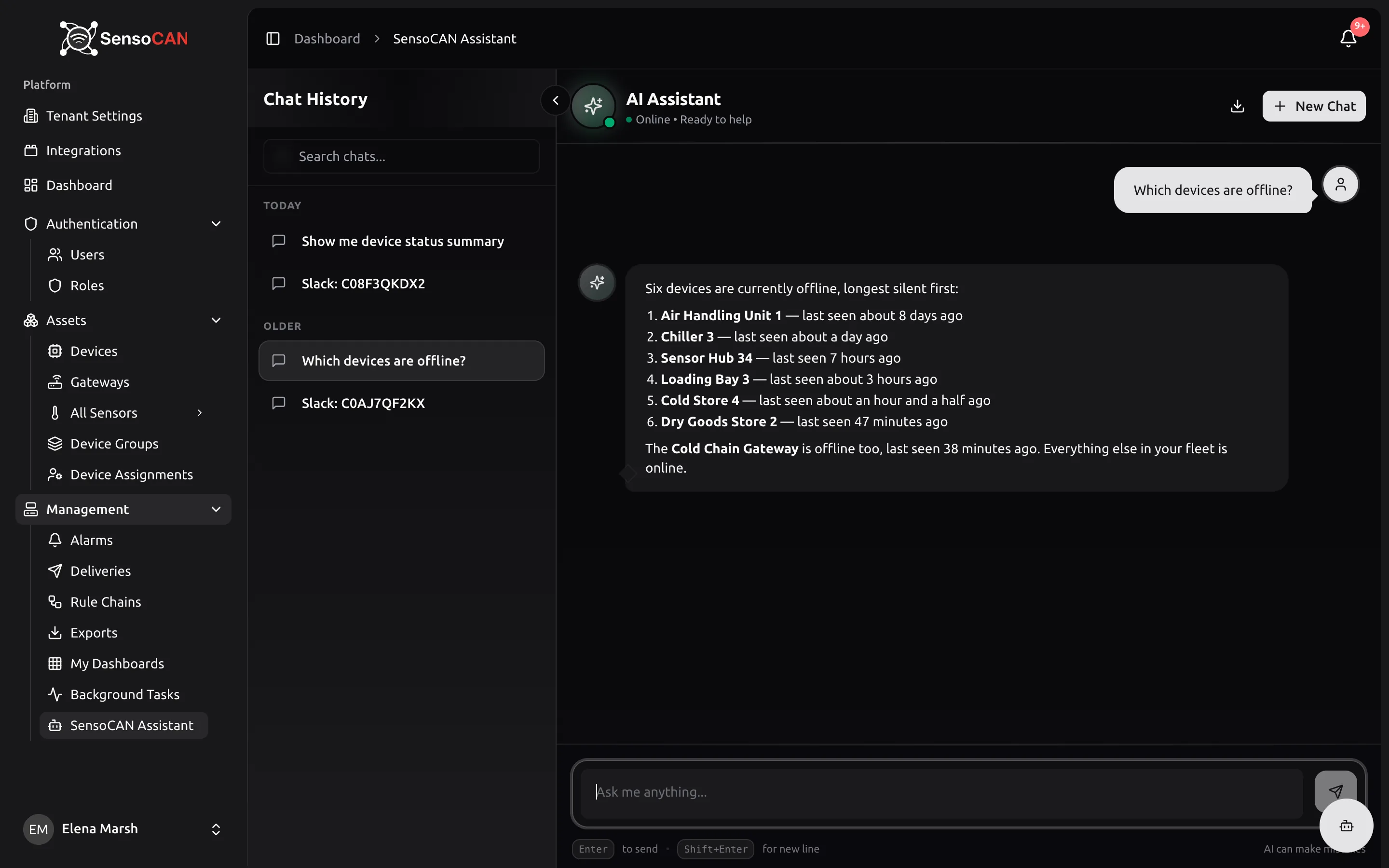
On the left, Chat History keeps your conversations grouped under Today and Older, with a Search chats... box for finding one again. Conversations you started from Slack appear in the same list, named Slack: <id> after the conversation they came from. New Chat starts a fresh conversation, Export chat downloads the current one as a plain text transcript, and a chat session can be deleted permanently if you no longer want it.
The panel header is titled AI Assistant, with the status line Online • Ready to help beneath it. The breadcrumb above reads Dashboard, then SensoCAN Assistant — so that is the name to look for if you navigate by breadcrumb rather than by the sidebar.
What you can ask
The assistant works from a fixed set of capabilities. Here is what it can look up, with examples in the way people actually ask.
Devices
- Find a device by name or location, or list your devices sorted by name, status, sensor count or when they were last seen: "Find the device called Cold Store 2"
- Look at one device in detail, with the sensors attached to it: "Tell me about gateway GW-04 and its sensors"
- List devices by status — online, offline or in error, with how long ago they were last seen: "Which devices are offline right now?"
- Find battery-powered devices running low: "Show me devices under 15% battery"
Device groups
- List your device groups with how many devices each contains: "What device groups do we have?"
Sensors and readings
- List sensors of a given type, optionally with their latest values: "List all humidity sensors with their current readings"
- Summarise one sensor's history — minimum, maximum, average and reading count over the last hour, day, week or month, or between two dates you give: "What was the average temperature in Freezer 1 over the last 7 days?"
- Compare several sensors over the same window, or one sensor against the period before it: "Compare the three cold room temperature sensors this week" or "Is Freezer 1 running warmer than last week?"
- List sensors currently outside their thresholds, optionally only above a severity you name: "Which sensors are in alert?" or "Show me only critical sensor alerts"
- Rank the busiest sensors by how many readings they sent: "Which sensors were most active in the last 24 hours?"
Alarms
- List open alarms, newest first, with severity, where they came from, when they started, how often they re-triggered and whether anyone acknowledged them: "What alarms are open?"
- Show how many alarms were raised per day over a period, optionally for one severity only: "How have critical alarms trended over the last 30 days?"
Deliveries and rules
- Report on messages sent over email, SMS and WhatsApp by outcome for today, the last week or the last month: "How many notifications failed this week?" See Deliveries for the full picture.
- List your rule chains and whether they are active: "Which rule chains are switched on?"
Organisation and people
- Give an overall summary of your organisation — how many devices and sensors you have and how many alarms are open: "Give me a summary of our setup"
- Show recent user activity from the audit trail: "What changed in the last few days?"
Exports
- Request a sensor data export by device, device group or sensor type for a recent period, in Excel or PDF: "Export the last 30 days of temperature data for the Warehouse group". As with an export you start yourself, it is generated in the background and you get an email when it is ready.
Be specific about the thing and the period. "What was the average temperature in Freezer 1 yesterday?" gets a clean answer; "how's the temperature?" makes the assistant guess.
What it will not do
The assistant reads and reports. It does not operate your estate.
- It cannot switch anything on or off, reboot a device, or send a command to a gateway.
- It cannot create, edit or delete devices, sensors, thresholds, rule chains or users.
- It cannot acknowledge or close an alarm on your behalf.
Requesting an export is the one thing it starts for you, and even that only queues a report. Anything that changes your estate stays with the people authorised to do it, through the normal pages, where it is recorded in the audit trail.
What it can see
The assistant answers only from what it can actually look up, and it says so when it finds nothing rather than filling the gap. Every capability above is offered to it only when your own role includes the matching right, so it sees exactly what you would see if you opened the pages yourself, and no more. It reasons in the timezone on your profile and states times in that zone.
On the messaging channels, only accounts you have deliberately linked can reach your data, and linking is per person: connecting a Slack workspace does not give the whole workspace access to your organisation's data.
Permission and limits
Using the assistant is controlled by a chat permission that is not part of every role by default. There is a separate right for deleting chat sessions. If AI Assistant is missing from your navigation, ask an administrator — see Roles and permissions.
Messages are rate limited: send a burst of them and you will be asked to wait a moment and try again. A conversation carries the recent turns as context rather than the whole history, so if you change subject completely it is usually cleaner to start a new chat. Questions that reach far back in time are answered over a bounded window.
In Slack and WhatsApp, answers are written short and plain, and a long one is split across several messages.
The assistant can make mistakes, as the chat footer says. For anything you are going to act on, check the underlying page — Devices, Alarms or your own dashboards — before you rely on it. If it reports trouble reaching the service, wait a moment and ask again.