MQTT
MQTT is the usual choice for firmware you write yourself: one connection, held open, and a publish whenever you have a reading.
Before you start, collect the Device UUID, the MQTT topic and the MQTT credentials from Device Details — see what you need from the platform first.
Connection settings
| Setting | Value |
|---|---|
| Host | mqtt.sensocan.com |
| Port | 8883 for TLS, 1883 for plain TCP |
| Client ID | The Device UUID, exactly |
| Username | The MQTT username from Device Details (it looks like device- followed by the Device UUID) |
| Password | The MQTT password from Device Details |
| Clean session | Yes |
| QoS | 0 or 1. Use 1 on an unreliable link |
| Keep-alive | Your choice; shorter keep-alives detect a dropped link sooner |
Use port 8883 in production. Port 1883 carries your device password in clear text and is there for bench work on a network you control.
A clean session is all you need: devices publish only. Subscriptions are refused, so there is no session state worth resuming.
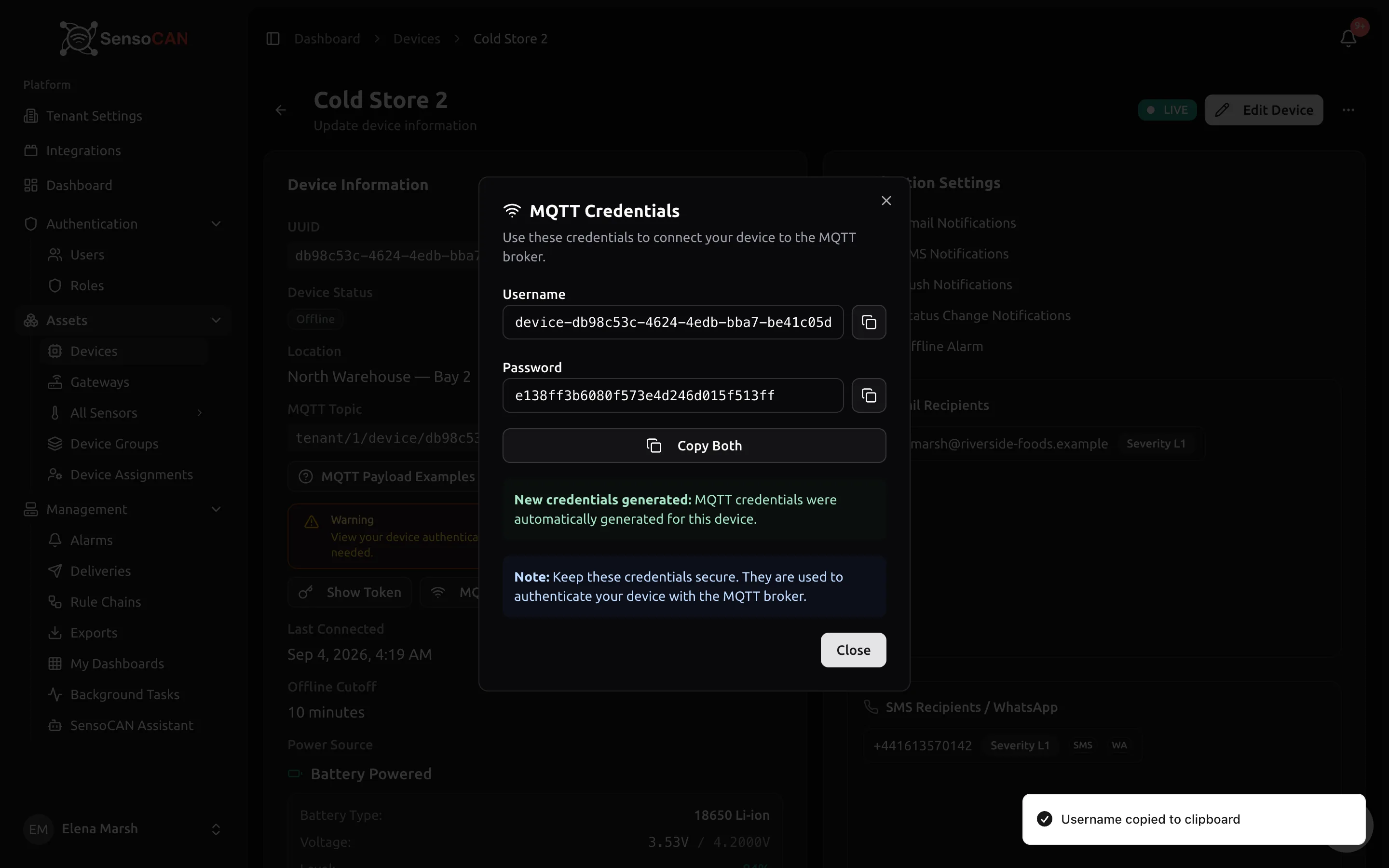
The password is stored encrypted. Opening the dialog again shows the same password — there is no way to rotate it from the UI; a new one is only issued automatically if the stored credential is ever lost or fails to decrypt.
The client ID rule
A connection whose client ID is anything else is refused, whatever the username and password. This is the most common failure after a firmware change, because many MQTT libraries invent a client ID for you — PubSubClient uses whatever you pass to connect(), and other libraries default to a random string or the MAC address. Set it explicitly.
Two devices must never share a client ID. When they do, each connection evicts the other: the older session is dropped every time the other one reconnects, and both devices flap between connected and disconnected forever. If you cloned firmware onto a second unit, give it its own device record and its own UUID.
Topics
There are three publish topics. Which one you use decides how the payload is read.
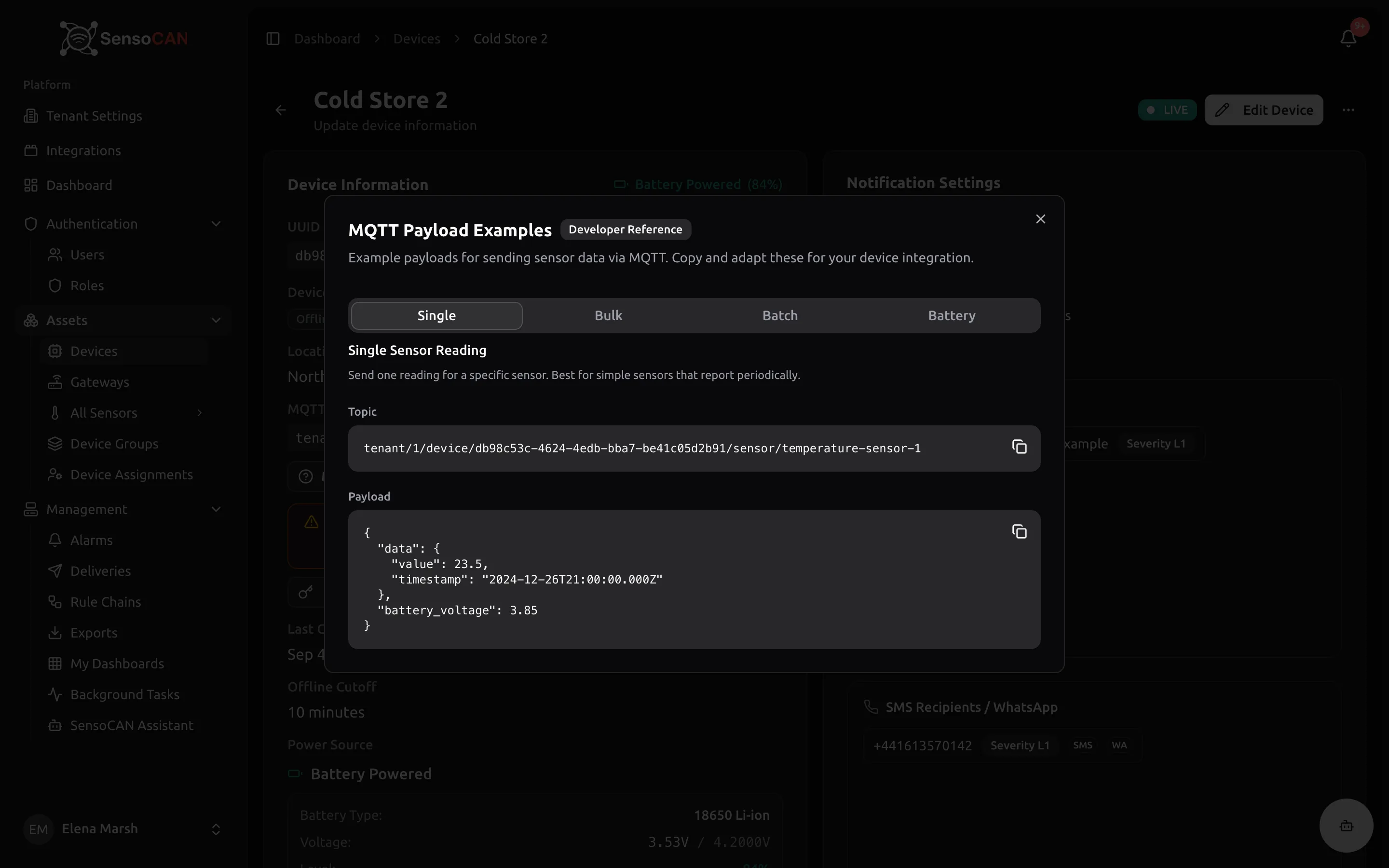
1. One reading for one sensor
tenant/{tenant_id}/device/{device_uuid}/sensor/{sensor_identifier}
{
  "data": {
    "value": 24.5,
    "timestamp": "2026-09-03T10:00:00Z"
  },
  "battery_voltage": 3.7
}
2. Several readings for one sensor
Note the plural sensors. Use this to flush a buffer for a single sensor.
tenant/{tenant_id}/device/{device_uuid}/sensors/{sensor_identifier}
{
  "data": [
    { "value": 24.0, "timestamp": "2026-09-03T09:00:00Z" },
    { "value": 24.2, "timestamp": "2026-09-03T09:15:00Z" },
    { "value": 24.4, "timestamp": "2026-09-03T09:30:00Z" }
  ]
}
3. Readings for several sensors
The device-level topic — the one printed on Device Details. This is the most efficient option when a device carries more than one sensor.
tenant/{tenant_id}/device/{device_uuid}
{
  "data": [
    { "sensor_slug": "temp_01", "value": 24.5 },
    { "sensor_slug": "humidity_01", "value": 45.2 },
    { "sensor_uuid": "7a8b9c0d-1234-5678-90ab-cdef12345678", "value": 100 }
  ],
  "battery_voltage": 3.7
}
Each entry identifies its sensor with either sensor_slug or sensor_uuid. An entry with neither is dropped.
{sensor_identifier} in the first two topics is also either the sensor's slug or its UUID — both are shown on the sensor's page, and matching is exact, including case.
You can also publish battery alone, with no data key at all, on any of the three topics:
{ "battery_voltage": 3.7 }
Do not build topics by hand
Device Details prints the device-level topic in full, with a copy button, and the MQTT Payload Examples button beside it opens all three topics and matching payloads already filled in with this device's tenant, UUID and first sensor.
You may only publish under your own device's topic. A publish whose topic carries another device's UUID — or your UUID under the wrong tenant — is refused by the connection, not silently ignored.
The data envelope
data is accepted and then ignoredReadings live under a top-level data key. Publish {"value": 24.5} and the message is delivered, your device is marked online, and no reading is ever created. Nothing comes back to tell you, because an MQTT publish has no reply.
If your messages are clearly arriving — the device shows as online, Last connected keeps moving — and no values appear, check the envelope first.
Example: ESP32 / Arduino
#include <PubSubClient.h>

const char* mqtt_server = "mqtt.sensocan.com";
const int   mqtt_port   = 8883;  // TLS — pass a WiFiClientSecure to PubSubClient
                                 // for this port; 1883 takes a plain WiFiClient

// All three come from Device Details. The client ID must be the Device UUID;
// the username and password are the MQTT credentials shown on that page.
const char* device_uuid   = "a1b2c3d4-e5f6-7890-abcd-ef1234567890";
const char* mqtt_user     = "device-a1b2c3d4-e5f6-7890-abcd-ef1234567890";
const char* mqtt_password = "your-device-mqtt-password";

// Copy the topic from Device Details rather than assembling it here.
const char* topic = "tenant/123/device/a1b2c3d4-e5f6-7890-abcd-ef1234567890/sensor/temp_01";

void setup() {
  client.setServer(mqtt_server, mqtt_port);
  client.setBufferSize(512);            // the default is too small for batches
  client.connect(device_uuid, mqtt_user, mqtt_password);
}

void loop() {
  if (!client.connected()) {
    client.connect(device_uuid, mqtt_user, mqtt_password);
  }
  client.loop();

  // The data envelope is required.
  const char* payload = "{\"data\":{\"value\":25.3}}";
  client.publish(topic, payload);
  delay(60000);                         // once a minute
}
PubSubClient silently drops a publish that exceeds its buffer, which is 256 bytes by default — enough for the single-reading payload above, not enough for a batch. Call setBufferSize() before you send batches.
Troubleshooting
The connection is refused
Work down this list in order:
- Client ID — it must be exactly the Device UUID. Print what your library actually sent.
- Username and password — copy them again from the MQTT Credentials dialog; the dialog always shows the same, unchanging password.
- Device status — a device showing error on Device Details is not allowed to connect. Change its status back from the device page.
- Account status — devices of a suspended or inactive account are refused. Ask an administrator.
The device connects, then drops whenever another device connects
Two devices are sharing one client ID. See the client ID rule.
The device is online but no values appear
Device Details is where you check this. Last connected and the status badge tell you messages are arriving; the Sensors table shows each sensor's Current Value and Last updated.
- Last connected is moving, sensors show no data — the message arrives but no reading is created. Check the
dataenvelope, then check thatvalueis present in every reading object. - Some sensors update, others do not — the identifier for the ones that stay empty does not match a sensor on this device. Compare it character for character with the slug and UUID on the sensor's page.
- Everything looks right and still nothing — the readings are being accepted and passed to the rule chain, and the chain is dropping them. A chain must contain a save step for values to appear. See Management → Rule Chains.
- Last connected is not moving — the message is not arriving at all. Check the topic against the one printed on Device Details, and check that your payload is valid JSON.
A value arrives once and then stops updating
If your device sends the same value repeatedly, repeats within a few seconds are suppressed for some sensor types. Change the value or wait out the interval to confirm the link is healthy.