Ask your first question
You have a device connected and a sensor reporting. The obvious next move is to open every page and check it looks right. There is a faster one: ask.
Three questions tell you whether your setup works end to end: whether the reading arrived, whether it was stored, and whether the device is being watched. Each answer either confirms something or points at one thing to fix.
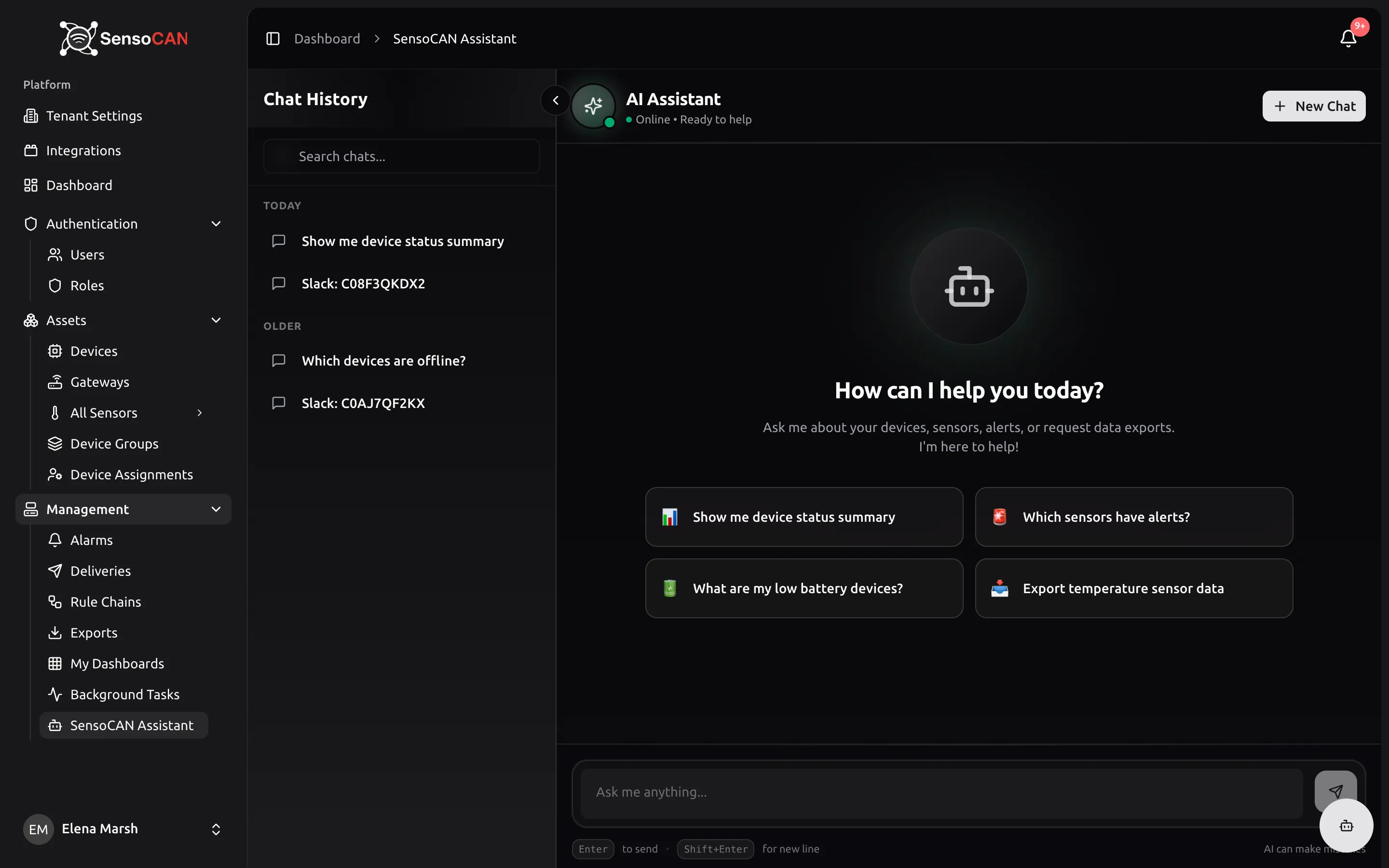
Open the assistant
In the sidebar, open Management → AI Assistant.
The page opens on an empty chat headed How can I help you today?, with four suggestion chips and an Ask me anything... box at the bottom. Clicking a chip is the fastest way to ask, because it sends the question for you: "Show me device status summary", "Which sensors have alerts?", "What are my low battery devices?" and "Export temperature sensor data". Otherwise type into the box and press Enter to send; Shift and Enter together give you a new line. Your conversations are kept in the Chat History panel on the left, so you can come back to this one later.
If AI Assistant is not in your sidebar, you do not have the permission for it. The organisation owner and anyone with the Admin role hold it by default — ask them, or see Roles and permissions.
The three questions
Ask them in this order, in one conversation. Each builds on the last.
1. Give me a summary of our setup
A good answer names your device and sensor counts and tells you how many alarms are open — for a brand-new organisation, one device, one sensor and nothing open.
A thin answer is zeros. If the counts are zero after you created a device, you are either signed in to a different organisation, or the device was never saved. Open Devices and check it is there.
The first suggestion chip, Show me device status summary, asks this same question in one click. Here is what a good answer looks like once an organisation has been running for a while and has more than one device reporting:
Show me device status summary
Here's the current status summary for your tenant Riverside Foods:
Devices
- Total devices: 3
- Online: 1
- Offline: 2
- In error state: 0
Sensors
- Total sensors: 17
Alerts / Alarms
- Active alerts: 2
- Open alarms: 1 (of these, 0 are unacknowledged)
If you'd like, I can list which specific devices are offline or which sensors are in alert.
AI can make mistakes
A real conversation with the assistant; the organisation name has been changed.
2. What was the average temperature on Freezer 1 over the last 24 hours?
Use your own sensor's name and its measurement. A good answer gives you a minimum, a maximum, an average and the number of readings behind them. That reading count is the useful part: it proves your firmware's interval is doing what you expected.
A thin answer is "no data found" — and it is the most informative result on this page. It means readings are not in history. Either they never arrived, or they arrived and were not stored. Work through the two cases below.
3. Which devices are offline right now?
This one is a live check of the work you just did. Your new device reported minutes ago, so a good answer is a list that does not include it — or an answer saying nothing is offline at all.
A thin answer is your own device appearing in the list. That means it has now been silent for longer than its Offline Cutoff Time, so either your firmware sent one reading and stopped, or the cutoff is set shorter than your reporting interval. Both are fixed on the device page.
When the answer looks wrong
Three things account for almost every surprising answer.
Nothing was stored. Readings reach history only when the rule chain that applies to the device saves them. If no chain applies, or the one that does is inactive, your firmware is still told its readings were accepted while nothing is kept. The device page flags this in red on its Rule Chain Assignments card. See Rule chains.
The reading never arrived. If the device is still showing as offline and Last Connected is empty, nothing has reached SensoCAN yet. Go back to Connect your first device and check the topic, the credentials and the sensor identifier in your payload.
You cannot see the device. Everyone except the organisation owner sees only the devices assigned to them, and the assistant obeys exactly the same rule — it answers from the data you are allowed to see, so a colleague can ask your question and get a different answer. If a device you know exists is missing from an answer, it is probably not assigned to you. Invite your team covers assignment.
Name the device or sensor exactly as you typed it, and name a period. Then follow up — "and the humidity?", "what about last week?" — because the conversation carries the recent turns as context.
Where to go next
What to Ask is the cookbook, grouped by the job you are doing. Ask SensoCAN covers the rest: Slack and WhatsApp, what it will not do, and how permissions shape the answers.
Then carry on to Invite your team, the last step of getting started.