What you get
One organisation, one sign-in, and the modules below. Each section links to the chapter that covers its screens in full.
Devices and sensors
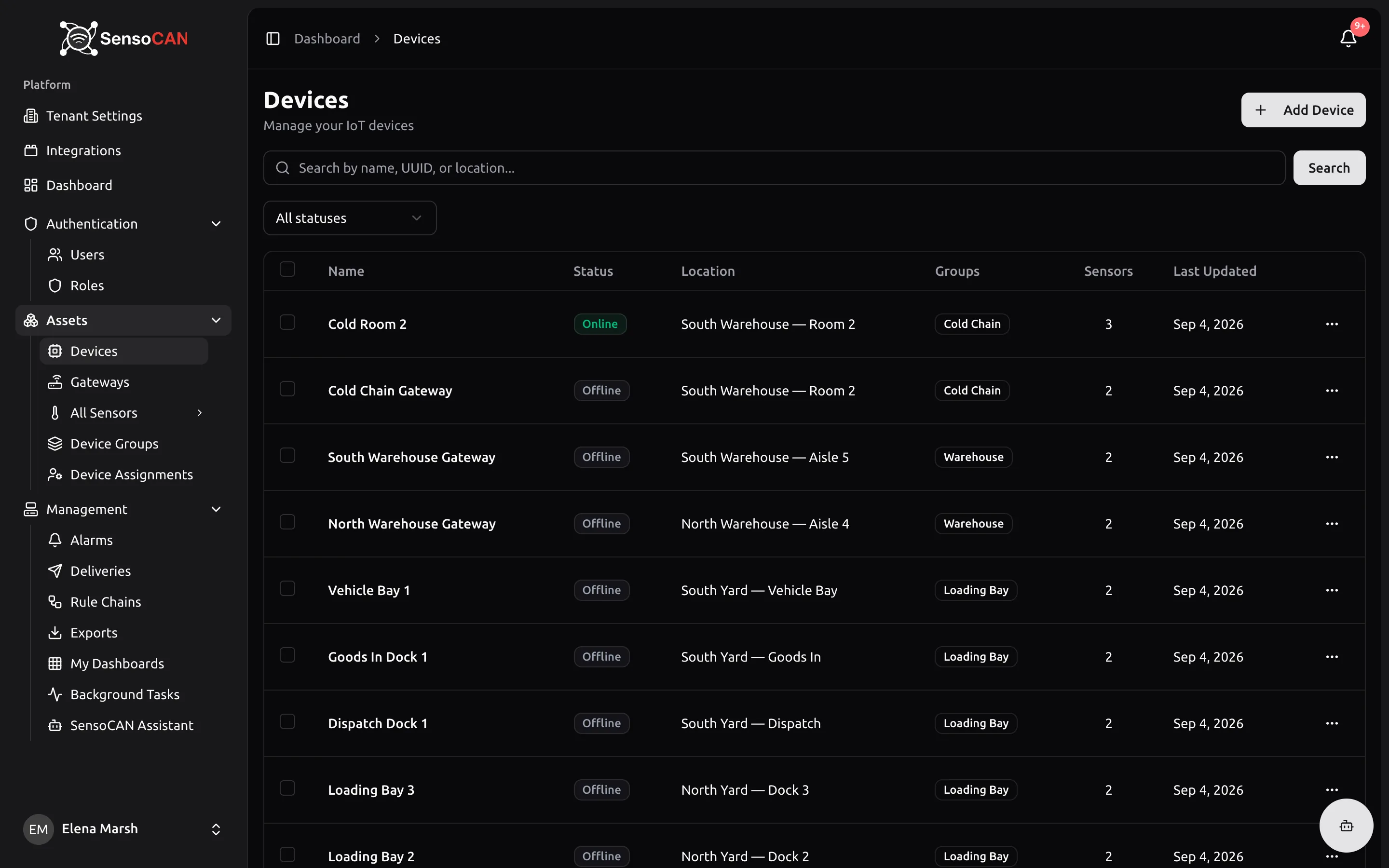
Register anything that reports. A device carries a name, a location, a power source — Direct Power, or Battery with a battery type that turns reported voltage into a level percentage — and an Offline Cutoff Time setting how long it may stay silent. The list searches by name, UUID or location and updates status badges live. On each device you add sensors: one measurement stream each, with a sensor type that fixes what its profile holds — thresholds, sensitivity margins, business hours, notification switches. Bulk edit applies a change across many devices at once.
Device groups
Group devices into a nested hierarchy — site, building, floor, room — and use it to filter lists, drive dashboards and export a whole group. Devices attach to leaf groups only, and a device may sit in more than one group. Visualize draws the hierarchy, and each group page carries a combined readings chart for the devices inside it. See Device groups.
BLE gateways and beacons
Create a device with the Gateway class and SensoCAN gives you the commissioning values for supported BLE gateways. Register the beacons it relays one at a time or by CSV import, and the sensors each reports are created for you. The Beacons panel shows every beacon with an Active, Silent or Never seen badge, plus its MAC address, model, location, last seen, signal strength and battery, live. Each beacon has its own offline cutoff, low-battery threshold and offline-alerts switch, and those alerts go to the gateway's recipients. A fleet page lists your gateways with connection health and lets you issue commands, and a Diagnostics page shows what a gateway heard but could not process. See Gateways and beacons.
Live and historical data
Every sensor page opens on a live reading, a gauge you can restyle, and an in-range or out-of-threshold badge. Below it, three tabs: Live Data appends readings as they arrive, Historical covers any date range with one-click presets, and Aggregated gives hourly or daily mean, minimum and maximum. Every chart flips to a table and exports what is on screen to CSV. Door sensors get an open and closed timeline with business hours shaded. See Sensors.
Rule chains
Rule chains are the automation layer, drawn on a canvas. Start blank or from a built-in template, drag in filters and actions, and wire the outputs you want to act on. Filters compare values, check business hours, count consecutive breaches and escalate through three severity levels, throttle how often the chain may act, or pass only readings that moved. Actions send email, SMS, WhatsApp or push, raise, clear and acknowledge alarms, and save readings. A chain is validated as you edit, assigned to devices or left to the organisation default, and keeps a failure log of anything that went wrong at run time. See Rule chains.
Alarms and deliveries
The Alarms page lists conditions that need a person, filtered by status, severity and acknowledgement, each row showing its source, start time, how often it has re-triggered, and its two states. A bell in the header counts what is open and unacknowledged and raises a toast the moment something fires. Deliveries is the matching record: one row per recipient per message on email, SMS and WhatsApp, with its status and, when it failed, the reason. SMS runs through the provider you configure in organisation settings. See Alarms and Deliveries.
Dashboards
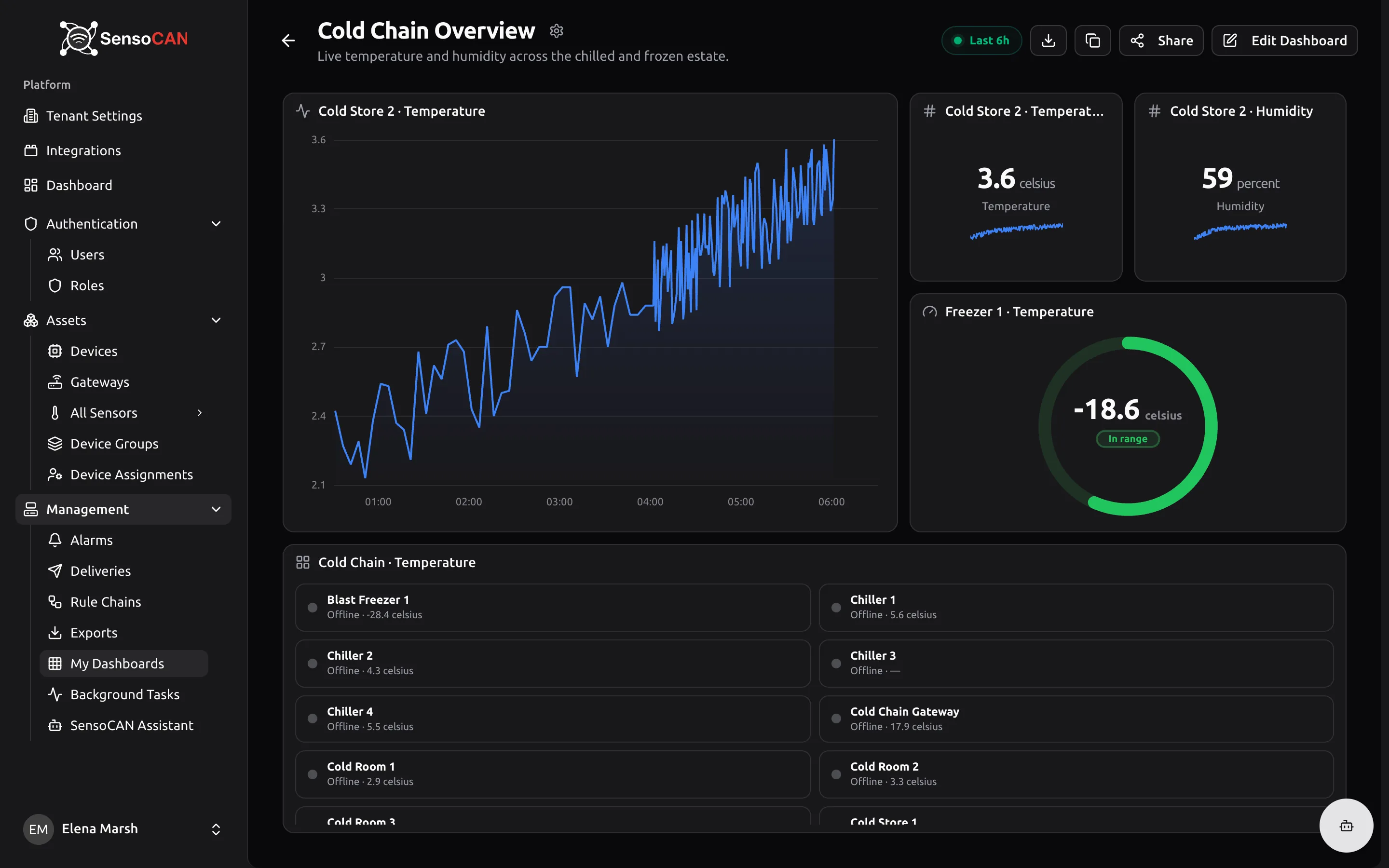
The home dashboard summarises the organisation: device status distribution, sensor activity, alert trends, messages by channel, busiest sensors. My Dashboards is where you build your own, from time series and bar charts, value and stat cards, gauges, device rings, status grids, alarm tables and counts. Widgets read from data bindings that resolve to devices at view time, so one dashboard can serve a single device, a whole group, or every device with a given sensor type. Add states to drill from a fleet view into one device, share with your organisation, and publish a read-only kiosk link for a wall display.
See My Dashboards and Home dashboard.
Exports
Turn a date range into a file. Export from a sensor or a device group, choose Excel or PDF and raw readings or averages, and it runs in the background — you get an email with a download link when it is ready. The Exports page lists everything requested, and Background tasks shows progress while a job runs. See Exports.
AI assistant
Ask a question instead of building one. The assistant reports which devices are offline, which sensors are in alert, which batteries are low, the minimum, maximum and average for a sensor over a window, how two sensors compare and how alarms have trended — and it can request an export for you. Chat history is searchable and transcripts download. The same assistant answers in Slack once an administrator connects your workspace and each person links their own account. It only ever reports data your permissions allow. See AI assistant and Integrations.
Users, roles and permissions
Add people by invitation or with a password you set, resend an invitation that expired, and delete or restore an account. Three roles ship with every organisation — Admin, Manager and User — covering the split between running the platform, operating it and reading it. Need something else? Clone a system role and adjust its permissions. On top of roles sits per-user device visibility: a person sees only the devices assigned to them. See Users and Roles and permissions.
Consultant access
An outside specialist — an installer or service partner — can hold a consultant sign-in reaching several organisations, choosing which one they work in from a Select Tenant page. Inside one they see its devices, gateways, sensors and device groups, and can edit devices, sensors and sensor profiles and issue gateway commands. They do not see your alarms, rule chains, exports, dashboards, users or settings. See Consultant access and the consultant guide.
Mobile app
A companion app for iOS and Android covers the field: a health summary leading with whatever needs attention, device and sensor lists with filters, readings with gauges and charts, alarms you can acknowledge, and export requests. Push notifications deep-link to the alarm or device they refer to, and biometric sign-in gets you in fast. Setup work — creating devices, rule chains, dashboards, users — stays on the web. See Mobile app.
Languages
The interface ships in English, Deutsch, Français and العربية. Each person picks their own from their settings or the switcher on the sign-in pages, and it sticks to their account, including the language their notification emails arrive in. Arabic renders the application right to left, sidebar included. See Account settings.
Security
Two-factor authentication is open to everyone through an authenticator app, backed by recovery codes and a one-time code by email or WhatsApp if you lose your device; the organisation owner is required to set it up. New colleagues are usually invited rather than handed a password directly — though an admin can set one for them instead — and an invitation link expires after 48 hours, with the colleague choosing their own password. Google sign-in works for accounts that already exist, and access is granted device by device, not all or nothing. See Account settings and Users.