How SensoCAN works
Everything in SensoCAN hangs off one idea: a reading arrives, one rule chain decides what happens to it, and everything you look at afterwards is a view of what that chain stored or raised.
Follow one reading
- Your organisation is the container. Devices, sensors, device groups, users, roles, rule chains, dashboards and alarms all belong to it, and nothing crosses between organisations.
- A device sends a message. Its status badge flips to Online the moment that message is processed.
- A sensor on that device receives the reading — one measurement stream, with a sensor type and a profile holding its thresholds.
- One rule chain takes it in through the Sensor Input node. Exactly one applies: the chain assigned to the device if it is active, otherwise your organisation's default rule chain.
- Filters route it. Each sends the reading down a named output — True or False, Severity 1 Alert, Recovered, Changed, Passed — and a connection only carries readings whose output it is wired to.
- Actions act on it. Send an email, an SMS, a WhatsApp message or a push notification. Raise an alarm, clear one, or acknowledge one.
- Save to Database stores it. A reading reaches history and the live current value only through this node.
- The result surfaces. Alarms on the Alarms page and the header bell, messages in Deliveries, stored readings in dashboards, exports and the assistant.
Organisation, devices, sensors
Your organisation is created with three roles — Admin, Manager and User — and the person who signs up becomes its owner. The owner sees every device. Everyone else sees only the devices assigned to them, whatever their role, and that assignment also decides which sensors, groups and alarms they see. It is the most common reason a colleague reports an empty screen.
A device is the thing that connects: your own hardware, or a gateway relaying BLE beacons. It carries a name, a location, a power source, and an Offline Cutoff Time — the silence allowed before it is marked offline.
A sensor is one measurement on that device. Its sensor type — temperature, humidity, current, pressure, door, water — decides what its profile holds: minimum and maximum thresholds, sensitivity margins, business hours, and per-sensor email and SMS switches. Those values are what a rule chain reads when it judges a reading. A standard device holds only one sensor of each type; gateways are exempt, since every beacon adds its own.
See Devices, Sensors and Device groups.
Rule chains: the part that decides
A rule chain is a visual workflow on a canvas. Readings enter at Sensor Input, travel the connections you draw, and leave through the actions you attach. Nothing is implicit:
- Nothing is stored unless a reading reaches Save to Database. Every chain is created with that node for exactly this reason.
- An output left unwired drops its readings silently. A filter routing half its traffic to nowhere is a working chain with a hole in it.
- A device with no applicable active chain stores nothing. The device page says so in red when that happens.
Filters do the thinking: compare a value, check business hours, count consecutive breaches and escalate through three severity levels, throttle how often the chain may act, or pass only readings that actually moved.
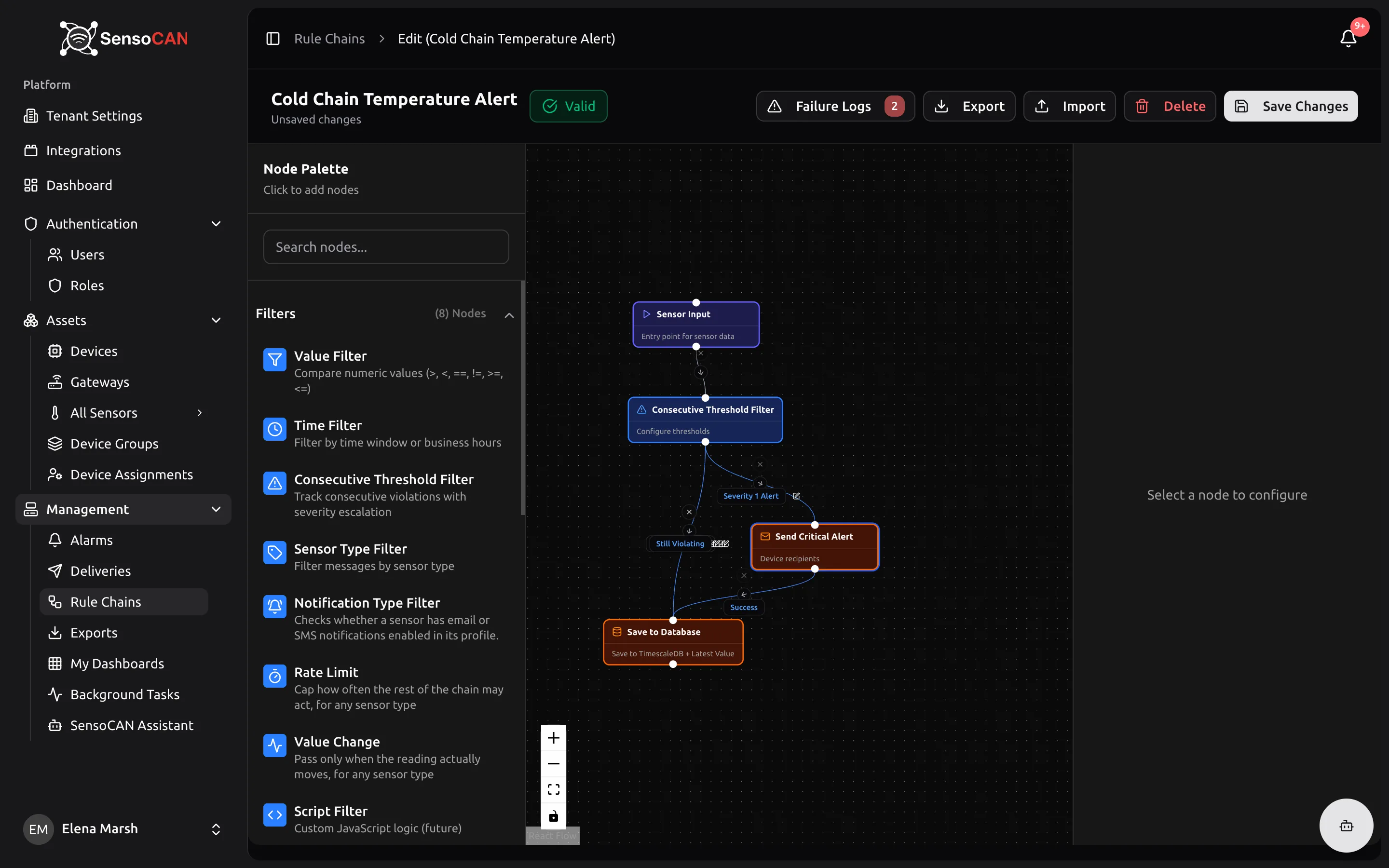
Alarms and deliveries
An alarm is a condition that needs a human. It carries two independent states: the condition is Active or Cleared, and attention is Unacknowledged or Acknowledged. It stays open until both are settled, so a breach that recovered overnight is still waiting in the morning. Severities are Warning, Major and Critical; re-raising an open condition counts triggers and can escalate severity rather than piling up rows. One acknowledgement serves the whole organisation.
Messages are a separate track. Deliveries is a read-only log with one row per recipient per message across email, SMS and WhatsApp, moving from Queued to Sent and then to Delivered or Failed, with the reason on a failed row. Email stops at Sent, because it has no delivery receipts. Push notifications are not logged.
Ask the same data
Everything the platform records is also queryable in plain language. The assistant reads exactly what the screens read — your devices and their sensors, the readings that reached Save to Database, the alarms those readings raised, the messages logged in Deliveries, and the audit trail of who changed what — and answers from it in the app, in Slack or on WhatsApp. One question reaches across the whole path above — the alarm a filter raised, and the reading that raised it:
Which sensors have alerts?
These sensors are currently in an alert state:
- Temperature Sensor on Sensor Hub 10
- Type: Temperature
- Severity: Warning
- Condition: ABOVE_MAX (above the configured maximum)
- Consecutive readings in alert: 2
- Last reading in alert: 2026-08-14T20:25:41-04:00 (America/Toronto)
AI can make mistakes
A real conversation with the assistant; the organisation name has been changed.
It is not a second copy of your data, and not a second set of rules. Each capability is offered to it only when your role includes the matching right, and it sees only the devices assigned to you. Two colleagues can ask the same question and get different answers, for the same reason their device lists differ. Nothing it reports would be hidden from you on a page; it saves you the trip, the filter and the date range. What to ask is the cookbook.
Where it all surfaces
The home dashboard shows the organisation at a glance and My Dashboards lets you build your own screens. Exports turns a date range into a file, emailed when ready.