Account Settings
Everything on these pages is yours: it changes your account, not your organisation's, and no role or permission is needed to reach it. Open the user menu at the bottom of the sidebar and choose Settings. Five pages sit in the settings sidebar: Profile, Password, Two-Factor Auth, Linked Accounts and Appearance.
Profile
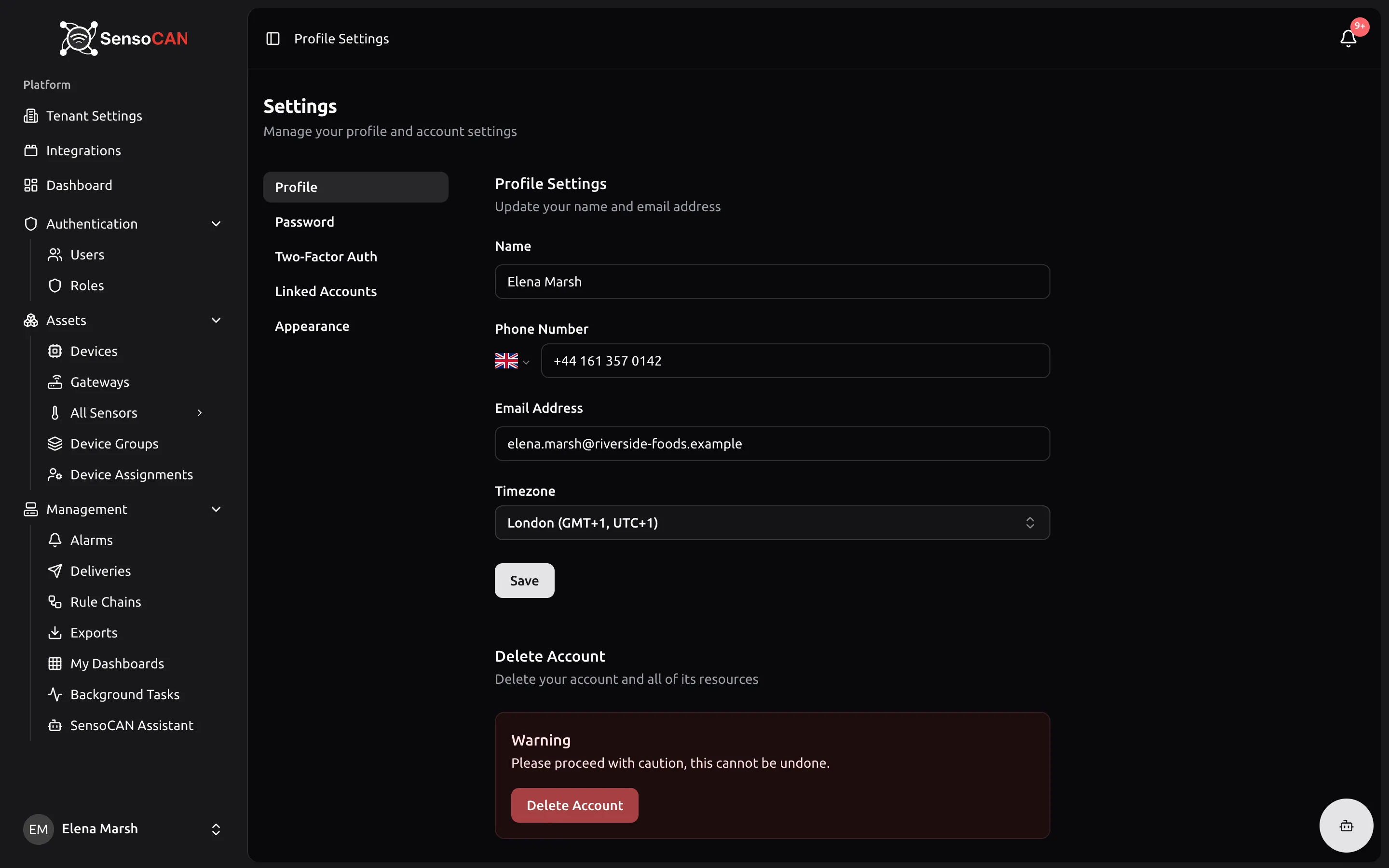
Settings → Profile is headed "Profile Settings — Update your name and email address".
- Name — required, up to 255 characters. This is what colleagues see next to your assignments and acknowledgements.
- Phone Number — optional, entered with a country picker. Worth filling in: it is the number a WhatsApp sign-in code can be sent to.
- Email — required, and it must not already belong to another account. Changing it starts a verification flow; see below.
- Timezone — a searchable list grouped by region, with "Select timezone..." and "Search timezones...".
Save confirms with "Saved".
Your timezone
Every timestamp in SensoCAN — chart axes, Last Connected, alarm times, export ranges — is rendered in the timezone on this page. The first time you sign in, if no timezone is stored yet, SensoCAN quietly adopts the one your browser reports. It does this once and never overwrites a value you have set, so if you travel, or your browser guesses wrongly, simply pick the right zone here.
Changing your email address
Typing a new address and saving does not change your email straight away. A verification message goes to the new address, and your account keeps the old one until you click the link inside it.
While that is outstanding the Profile page shows a Verification pending panel: "A verification email was sent to" the new address, "Your email will be updated after you verify.", a Resend email button with a short countdown before it can be used again, and Cancel to abandon the change. Any other field you saved at the same time — your name, phone or timezone — is applied immediately.
The link is good for seven days. Follow it and your address is updated and marked verified. Let it lapse and you are told the link has expired and to request a new one; if somebody else claims the address in the meantime, you are told it is already in use.
Deleting your account
At the foot of the Profile page, Delete Account asks for your password, then signs you out and removes you from the organisation. If it was done in error, an administrator can restore your account — see Users.
Password
Settings → Password is headed "Update password — Ensure your account is using a secure password", with Current Password, New Password and Confirm Password.
A password must be at least 8 characters and typed twice identically. There is no mixed-case or symbol requirement, which makes a long passphrase the easiest strong choice. The same rule applies when you reset a forgotten password or accept an invitation.
Two related flows land elsewhere:
- Forgot password? on the sign-in page emails you a reset link, valid for 60 minutes, and you can request a new one once a minute.
- If an administrator created your account with a password and ticked the option to require a change, your first sign-in goes to Change Your Password and nothing else opens until you have set your own. See Invite your team.
Two-factor authentication
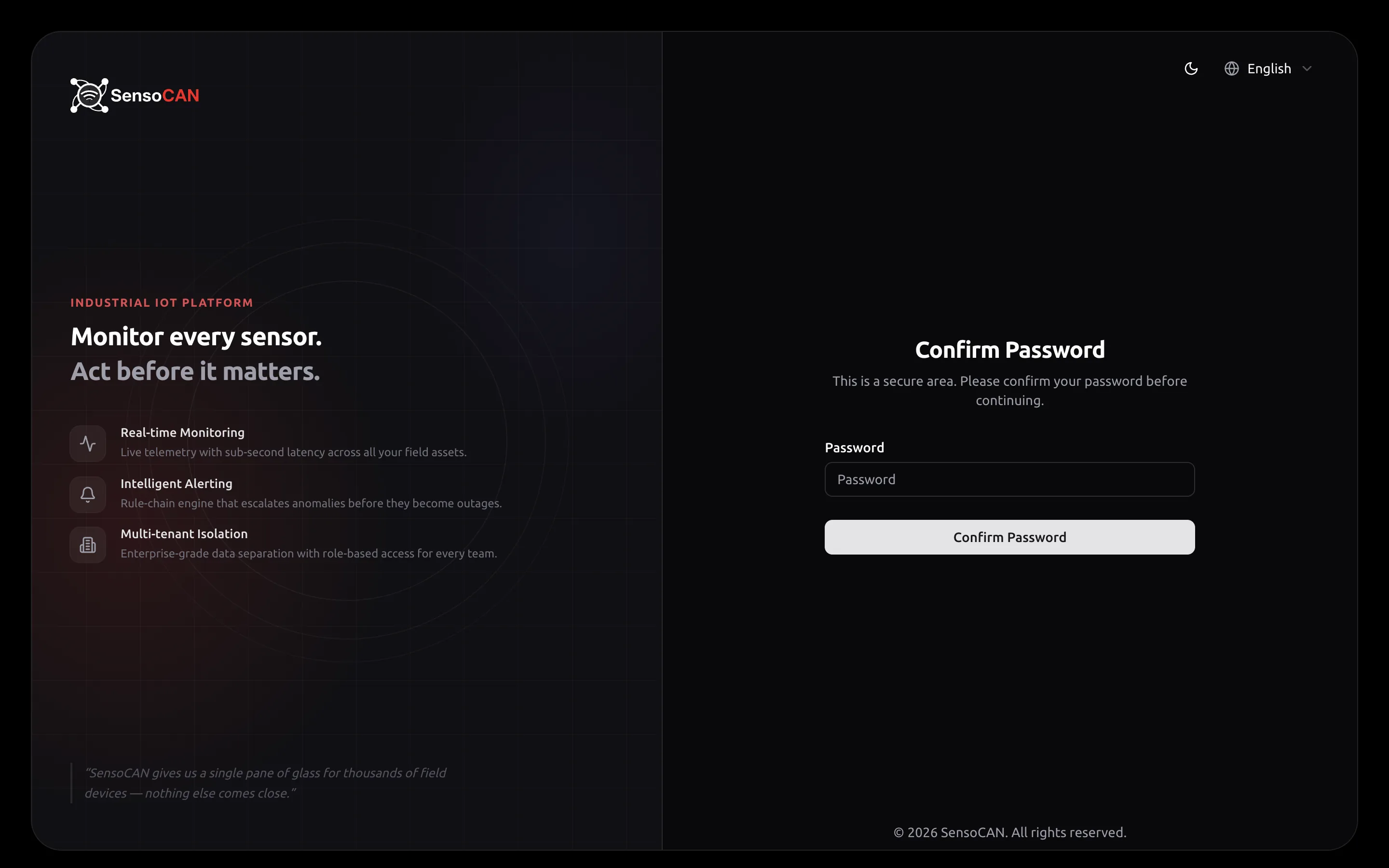
Settings → Two-Factor Auth — "Two-Factor Authentication — Manage your two-factor authentication settings". Opening it asks you to confirm your password first; that confirmation then lasts three hours, so you will not be asked again while you finish setting things up.
The method is an authenticator app on your phone — anything that generates six-digit time-based codes.
To turn it on, press Enable 2FA. A dialog shows a QR code to scan, a setup key to type in if you cannot scan, and a box for the six-digit code your app produces. Enter it and the badge flips from Disabled to Enabled. If you stop halfway, the button reads Continue Setup.
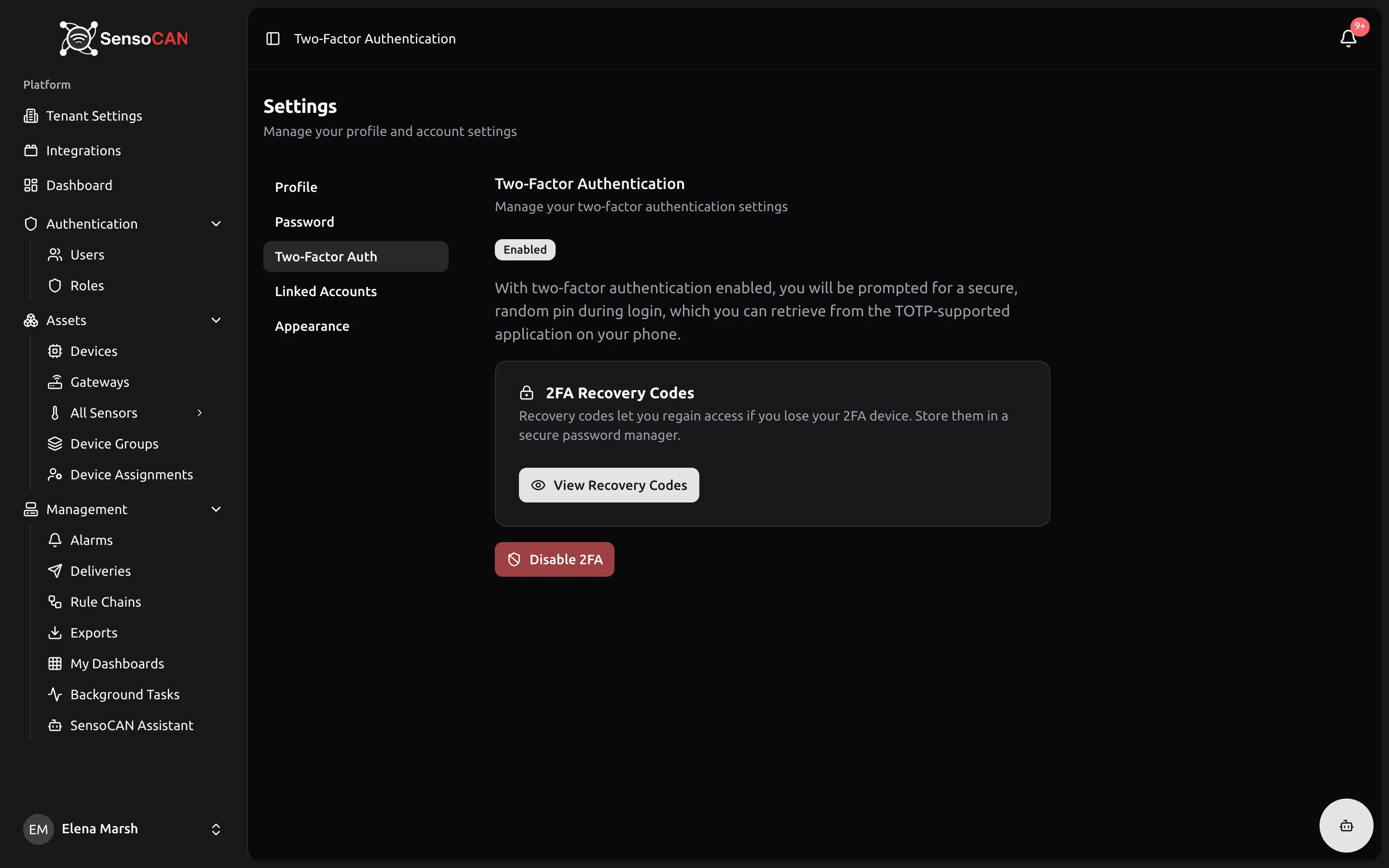
Recovery codes appear once two-factor is on, in a card explaining that "Recovery codes let you regain access if you lose your 2FA device. Store them in a secure password manager." Use View Recovery Codes to read them and Regenerate Codes to issue a fresh set, which invalidates the old one.
They are the way back in if the phone holding your authenticator is lost. A password manager or a printed copy in a safe place both work; a note on the same phone does not.
Disable 2FA turns it off again, unless it is mandatory for your account.
Signing in with two-factor on
After your email and password, SensoCAN asks for a second factor, and you can pass it three ways:
- Authentication Code — the six digits from your authenticator app.
- Recovery Code — one of the codes you saved. Each works once.
- A one-time code sent to you — choose to have a code sent to your email address, or to WhatsApp if your organisation has WhatsApp enabled and your profile has a phone number. Codes last ten minutes, and a countdown governs how soon you can ask for another.
That third option is the way back in when both the authenticator app and the recovery codes are gone.
When two-factor is compulsory
If you are the person who registered the organisation, two-factor is not optional. From your next sign-in after registering, SensoCAN sends you to a setup page and nothing else opens until you have scanned the code, verified it and confirmed that you have saved your recovery codes. The final step of sign-up warns you of this in advance.
That last confirmation is a real gate: Continue to Dashboard only becomes clickable once I have saved my recovery codes has been pressed and reads Saved!.
The whole sequence is walked through in Create your account.
Colleagues invited later are not forced; they can still enable it, and should.
Linked accounts
Settings → Linked Accounts — "Chat with the assistant from Slack or WhatsApp. Only accounts you link here can reach your data." Each provider card shows Linked with the identity it is tied to, or Not linked, and an Unlink button once connected.
WhatsApp — enter your phone number and press Send code. A six-digit code arrives on WhatsApp; type it into the confirmation box and press Confirm.
Slack — available once an administrator has connected your organisation's workspace; until then the card reads "Your organization hasn't connected Slack yet." Press Get code and send the code you are shown to the SensoCAN bot in Slack. It is displayed once, and you have ten minutes to use it.
For both providers the codes are six digits, expire after ten minutes, allow five wrong attempts, and asking for a new code cancels the previous one. One identity can be linked per provider, and a phone number or Slack member can belong to only one SensoCAN account. What you can then do from those apps is covered in AI assistant.
Linked accounts are for chatting with the assistant, not for signing in. The one sign-in provider on the web is Google, offered on the sign-in page for accounts that already exist — it never creates one, and the Google account's email must match your SensoCAN email exactly.
Appearance
Settings → Appearance — "Customize the look and feel" — holds two settings.
Theme: Light, Dark or System, which follows your operating system. The choice applies instantly and is remembered in that browser, so each machine you use can differ.
Language: "Select your preferred language", offered in four languages under their own names — English, العربية, Français and Deutsch. Choosing one saves it to your account, remembers it in the browser and reloads the page so the layout settles cleanly. Emails SensoCAN sends you follow the same choice. Both controls are also available in the corner of the sign-in pages, before you have an account to save them to.
Choose العربية and the whole interface mirrors: the sidebar moves to the right and text flows right to left. Codes, keys and recovery codes stay left to right so they remain readable.