Alarms
An alarm is a condition that needs a human to look at it. Unlike a message, it does not disappear once sent: it stays visible until somebody takes responsibility for it.
"What alarms are open right now, worst first?" — the assistant answers from your own data, without opening this page. See Ask SensoCAN.
Find them under Management → Alarms, headed "Monitor and acknowledge alarms raised by your devices".
Severities
There are three, and they are ordered:
| Severity | Badge |
|---|---|
| Warning | Amber |
| Major | Orange |
| Critical | Red |
How an alarm is raised
Alarms are opt-in — nothing raises one on its own. There are exactly two sources:
- A Raise Alarm node in a rule chain. You give it an Alarm Type (the identity of the condition, such as
high_temperature), a Severity, and a Message. - The Offline Alarm switch on a device, described below.
An alarm's identity is its alarm type plus the sensor or device it came from. That is what makes a sustained problem one incident rather than one row per reading: while an alarm with that identity is open, raising it again folds into the alarm already there — the Triggers count goes up and the message is refreshed, but no second alarm appears.
The lifecycle
The lifecycle runs on two independent axes, not one line:
- Condition — Active or Cleared. Does the problem still exist?
- Attention — Unacknowledged or Acknowledged. Has anyone taken responsibility?
An alarm is Open until both are settled, and only then does it close. That is the whole point of the design: a freezer that breached at 3am and recovered by 5am is Cleared but still Unacknowledged, so it is still waiting for you in the morning rather than having quietly erased itself.
Each axis moves on its own:
- A Clear Alarm node marks the condition resolved. Clearing is not closing.
- If the condition returns before anyone acknowledged it, the same alarm re-activates. It is the same incident flaring again, not a new one.
- Acknowledging is one action for the whole organisation: "This marks it as owned for everyone in your organisation." There is no private per-person dismissal.
- An Acknowledge Alarm node lets a chain acknowledge conditions automation genuinely handles by itself. The record keeps that distinct, showing "by rule chain name" instead of a person's name.
- Acknowledging an alarm that has already cleared closes it, so it drops out of the default Open view.
- If the device or sensor is deleted, its open alarms close automatically and read "Closed automatically · Device removed".
Who can acknowledge. Acknowledging needs the edit alarms permission; without it the action is not shown at all. It also disappears once an alarm is acknowledged — a second acknowledgement would only overwrite who owns it.
Escalation
Escalation in SensoCAN means one thing: within a single open alarm, severity can only climb. A Warning that later breaches harder becomes Major, and then Critical; it never drifts back down while the alarm is open. A new episode starts from whatever severity raises it.
Only two moments are treated as news: the first raise, and a genuine escalation. A breach that lasts all afternoon re-enters the alarm on every reading without changing its state, and those do not re-announce. This is why the Raise Alarm node has two outputs — wire your messaging to Raised or escalated and leave Already open unwired (or pointed at storage) to be told once instead of continuously.
Pair this with the Consecutive Threshold Filter and set the Raise Alarm severity to From threshold, so the escalation rules live in one place.
The alarm bell and live updates
The bell in the header shows the number of alarms that are open and unacknowledged and visible to you, capped at "9+". Click it to open the Alarms page pre-filtered to Unacknowledged.
It updates live. A newly raised alarm arrives as a toast showing its message, severity and source with a View button — an error tone for Critical, warning for Major, information for Warning. Escalations announce themselves as "Escalated to critical", someone else's acknowledgement as "Acknowledged by name"; clears update the badge quietly.
On the Alarms page itself, escalations, clears and acknowledgements update rows in place. New alarms do not reorder the list under you; instead a banner appears — "3 new alarms since you opened this page" — with a Refresh button.
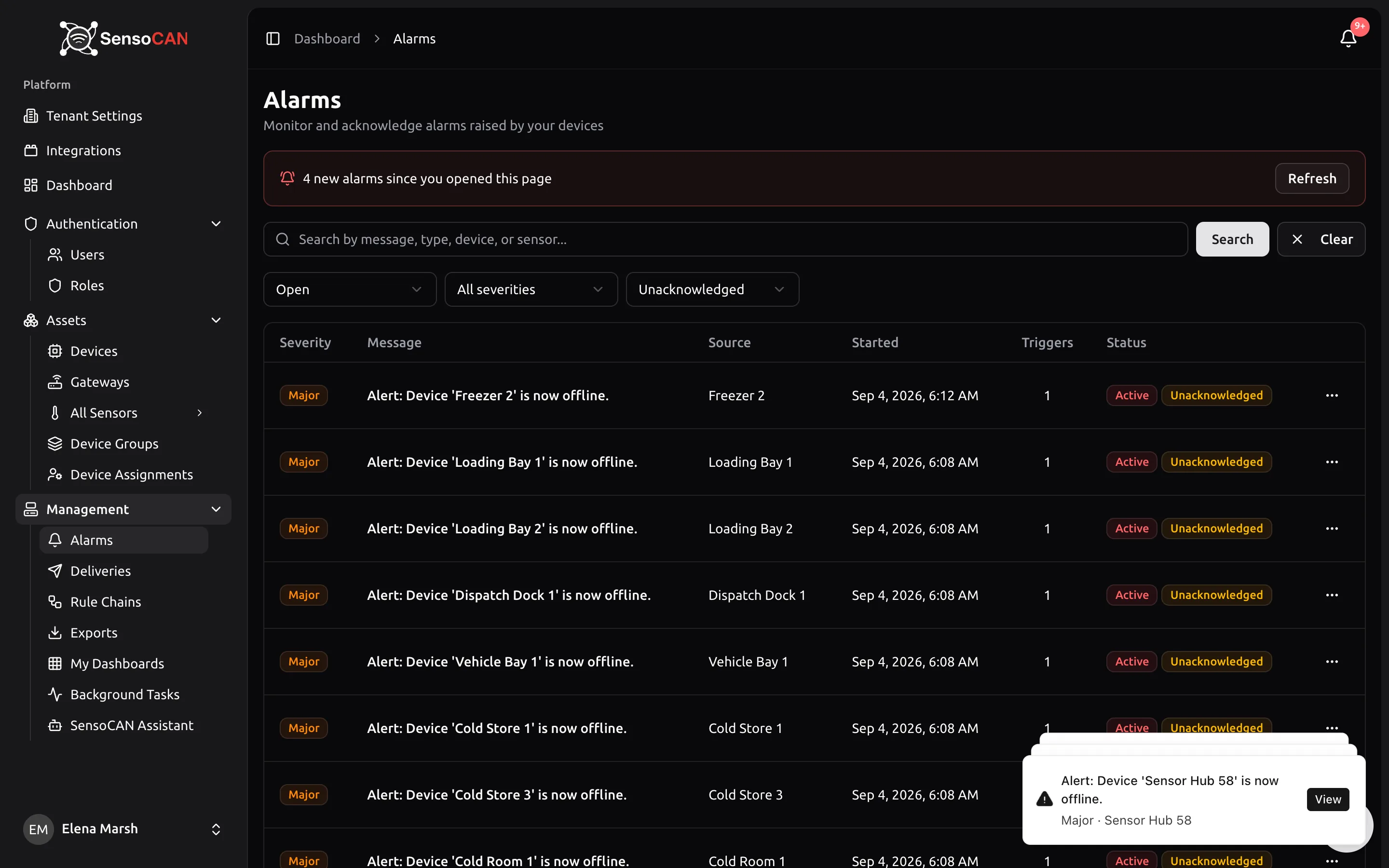
The Alarms page
Filters run across the top:
- Search — "Search by message, type, device, or sensor..."
- Status — Open (the default), Closed, or All statuses
- Severity — All severities, Warning, Major, Critical
- Acknowledged — All, Acknowledged, Unacknowledged
A Clear button appears once any non-default filter is set.
Columns are Severity, Message, Source, Started, Triggers and Status. Severity, Started and Triggers are sortable — click the heading. Source names the sensor, falling back to the device, and reads "Deleted hardware" if neither still exists.
The Status cell carries two badges, one per axis: Active (red) or Cleared (green), and Unacknowledged (amber) or Acknowledged (grey). Beneath an acknowledged alarm it says who owns it — "by name", "by rule chain name", or "Closed automatically · reason".
Acknowledging is in the row menu, behind a confirmation naming the alarm. When it goes through you get "Alarm acknowledged."; if a colleague reached it first you get "That alarm was already acknowledged." and the row simply shows their name.
Empty states read "No alarms have been raised yet." or, with filters applied, "No alarms found" and "Try adjusting your filters".
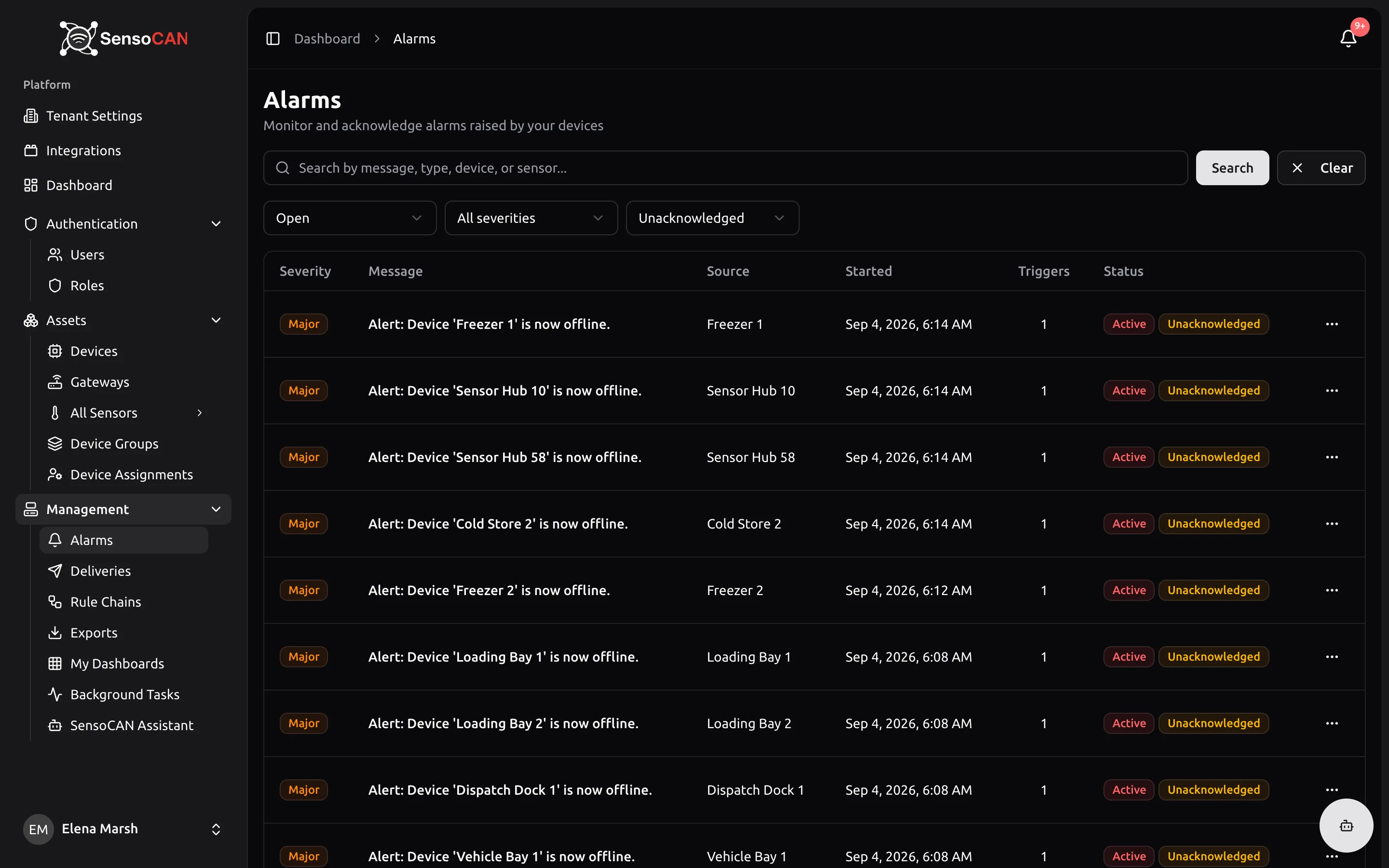
Alarms from devices, and status notifications
Two device settings sit next to each other and are often confused. Both are on the device's Notification Settings card.
Offline Alarm — "Track this device going offline as an alarm someone has to acknowledge." When the device stops reporting for longer than its Offline Cutoff Time, an alarm is raised at Major severity reading "Alert: Device 'name' is now offline." Coming back online clears it — but, as ever, it stays open until somebody acknowledges it, so a device that dropped out overnight cannot hide the fact.
Status Change Notifications — "Receive notifications when this device comes online or goes offline (Email or SMS notifications must be enabled)." This raises no alarm at all; it only decides who gets messaged. The device's configured recipients are messaged on every channel that is enabled, on every label, and the results show on the Deliveries page.
You can have either, both or neither: offline alarms give you the record, status notifications the nudge. Beacons behind a gateway have their own separate offline alerting — see Gateways & Beacons.
Permissions
| You need | To be able to |
|---|---|
| View alarms | See the Alarms page and the header bell |
| Edit alarms | Acknowledge an alarm |
By default Admin and Manager hold both. The User role holds view alarms only, deliberately: acknowledging settles an alarm for the entire organisation, so it belongs to the roles that answer for it. See Roles & Permissions.
Users who are not organisation-wide see only alarms for the devices and sensors they are assigned to. Two colleagues can therefore hold different bell counts on the same day, both correct.