Background Tasks
Some work takes too long to finish while you wait for a page to load, so SensoCAN runs it in the background. Background Tasks is where you watch that work happen.
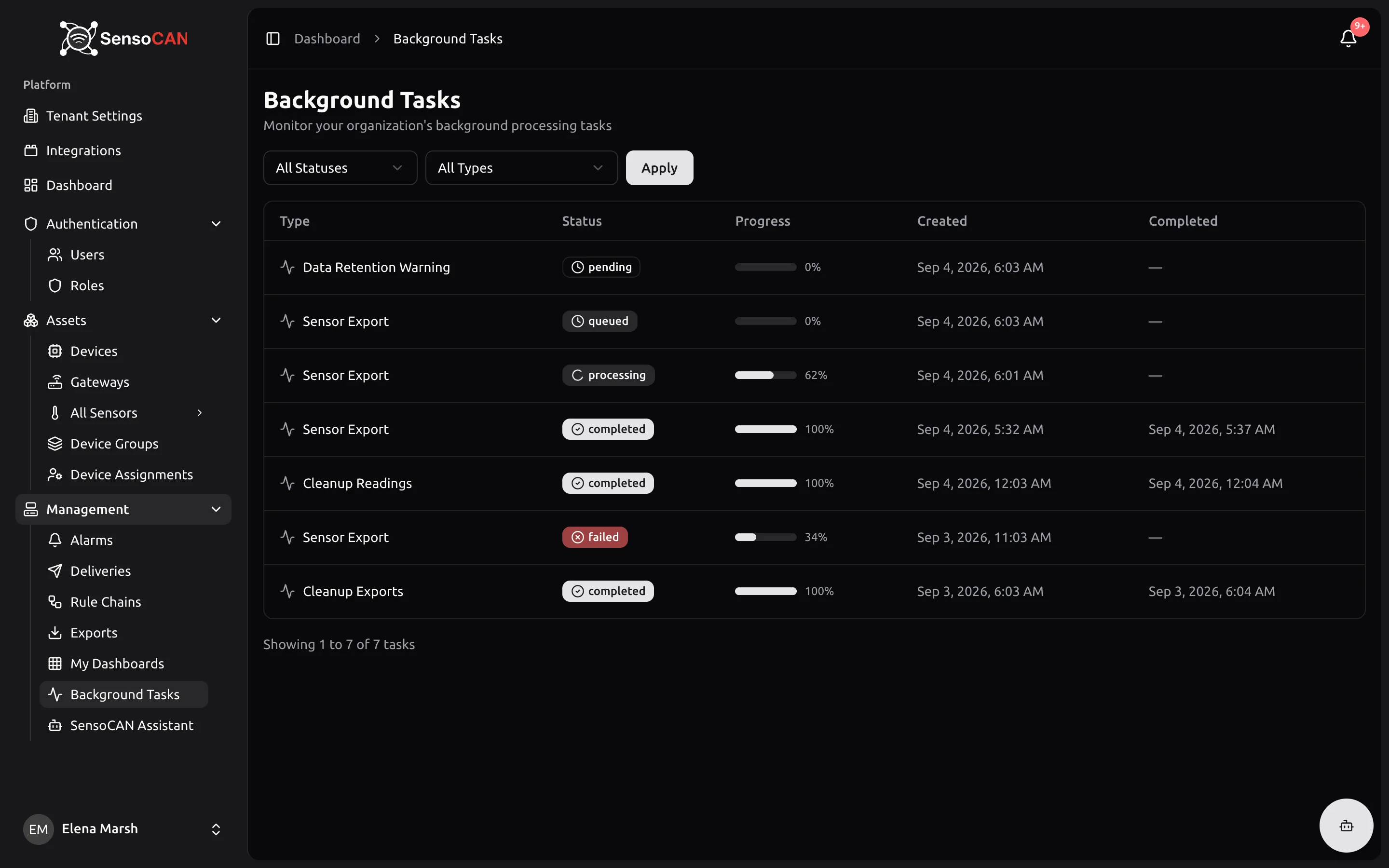
Open it from Management → Background Tasks. The page is subtitled "Monitor your organization's background processing tasks" and shows only your own organisation's tasks.
What appears here
The tasks you create yourself are sensor exports — every export you request appears here as a Sensor Export task while it is generated. Alongside them you may see housekeeping tasks that SensoCAN runs on your organisation's behalf, such as data retention warnings and routine clean-up. Those are informational: you do not start them and there is nothing to do about them.
Reading the list
Each row gives the task type, a status badge, a progress bar with a percentage, when the task was created and when it completed. Two filters sit above the table — one for Status and one for Type — with an Apply button. Longer lists are paginated, and when nothing matches you see "No background tasks found".
Statuses run in the order you would expect:
- Pending — accepted and waiting to start.
- Queued — accepted and waiting to start.
- Processing — running now, with the progress bar filling in.
- Completed — finished successfully. For an export, this is when the file becomes downloadable.
- Failed — stopped without finishing. A task that stays queued or processing for too long is failed automatically rather than left hanging forever.
- Cancelled — stopped before finishing.
Live updates
You do not need to refresh the page. Statuses and progress bars change in place as the work advances, and the list updates itself when a task completes or fails.
Task details
Select the task type shown in a row to open that task's detail page. It shows the task and its identifier at the top, then three cards:
- Status — the status badge and progress bar, plus a red error box with the message when the task failed.
- Timeline — when the task was created, started, and completed or failed.
- Result — the output from a completed task, where it produced one.
The error message is the useful part of a failed task. Quote it if you need to raise the problem with your administrator.
Permissions
Access to Background Tasks is a separate right and is not granted to every role by default, so the page may not appear in your navigation. See Roles and permissions for what your role includes.
Background Tasks is a read-only view. Tasks cannot be cancelled or retried from here; if an export fails, simply request it again from the sensor or device group.