Deliveries
A delivery is one message, to one recipient, on one channel. If a rule chain emails three people, that is three deliveries.
"How many alert messages went out this week, and did any fail?" — the assistant answers from your own data, and you can follow up in the same conversation. See Ask SensoCAN.
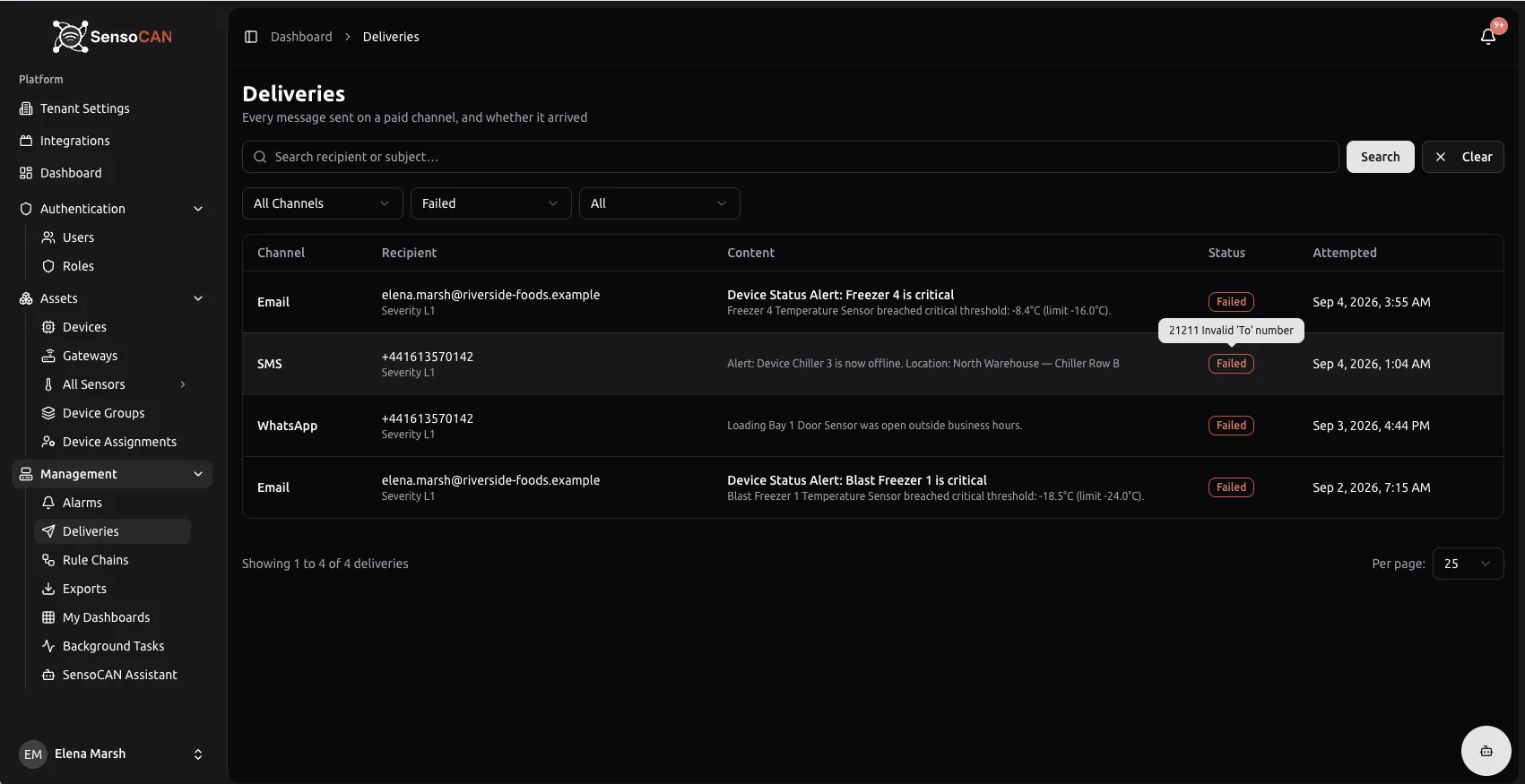
The Deliveries page under Management → Deliveries logs what SensoCAN actually sent and whether it arrived. It is read-only — a record to check when someone says they never got the alert.
Channels and statuses
Three channels are logged: Email, SMS and WhatsApp. Push notifications are not deliveries and never appear here.
A delivery moves Queued → Sent → Delivered, or Failed. It only ever moves forward.
| Status | What it means |
|---|---|
| Queued | Accepted and waiting to go out |
| Sent | Handed to the messaging network successfully |
| Delivered | The network confirmed it reached the recipient |
| Failed | It will not arrive |
Email has no delivery receipts, so Sent is the success state for email and it never reaches Delivered. An email sitting at Sent is a good outcome, not a stalled one. Only SMS and WhatsApp can reach Delivered.
Delivery receipts
SMS and WhatsApp report back after the fact, and that receipt is what moves a row to Delivered or Failed. Receipts can arrive late, out of order or more than once, and none of that moves a row backwards — so a row may update long after you looked at it, but never regress. If your organisation's SMS setup returns no receipts, its SMS rows stay at Sent.
The Deliveries page
Filters run across the top:
- Search — "Search recipient or subject…", matching the recipient address, its label and the subject
- Channel — All Channels, Email, SMS, WhatsApp
- Status — All Statuses, Queued, Sent, Delivered, Failed
- Type — All, Alarm, Transactional
Columns are Channel, Recipient, Content, Status and Attempted; the first, fourth and fifth are sortable. Recipient shows the address with the label it was matched on, such as Severity L1, which tells you which recipient list the message came from. Attempted shows whichever timestamp matters for that row — when it failed, was delivered, was sent or was queued.
Hovering a failed row shows why: the messaging network refused it without giving a reason, reported it undelivered, or the send failed and support can see the details — or a limit on that channel for your organisation had already been reached. Anything the network said in its own words, such as an invalid number, is shown verbatim and is usually the most useful of all.
Rows marked Transactional are sign-in messages such as a one-time login code. Their content is never stored — "Content not stored, so the code stays with the recipient" — so the Content column names the message instead of quoting it.
Who a message goes to
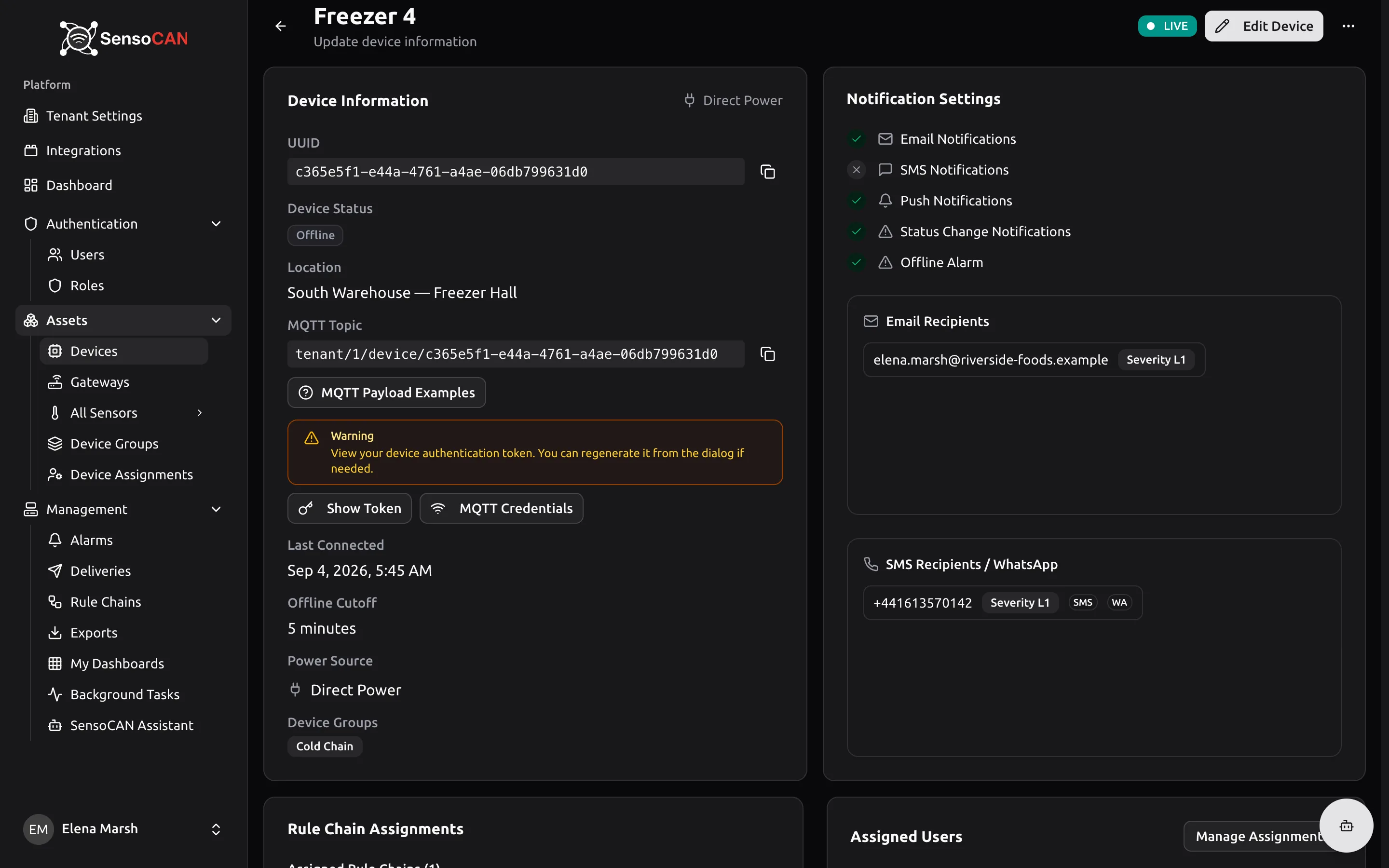
Recipients are configured per device on the Notification Recipients card — "Add contacts who should get alerts from this device."
- Email Recipients — an address plus a label: Default, Severity L1, Severity L2 or Severity L3.
- SMS Recipients — a phone number in international format such as
+1234567890, the same choice of label, and channel toggles for SMS and WhatsApp. New numbers arrive with both ticked, so untick WhatsApp for a number that is only a phone.
Labels are how a rule chain targets the right people: an action node's Select Labels setting decides which contacts it uses, so a Severity L3 escalation can reach a manager the routine alerts never touch. A contact listed twice for one message is messaged once.
The Notification Settings card above has a switch per channel. One turned off blocks every send on that channel for that device, whatever the rule chain says.
When a channel is not enabled for your organisation
Channels are switched on for the whole organisation in Organization Settings. When a channel is not enabled for your organisation, sends on it are skipped entirely — no message goes out and no row appears in this log. So a missing row means the message was never attempted, while a Failed row means it was attempted and did not arrive. Sign-in messages ignore these switches, so a login code still reaches you on a channel switched off for alerts.
Throttles you may notice
If deliveries are thinner than expected, a rule chain is usually shaping them on purpose: a Rate Limit node lets one message through per cooldown window per sensor; a Value Change node passes a reading only when it has moved; a Raise Alarm node's Raised or escalated output fires on the first raise and on escalations rather than every reading; and a Consecutive Threshold Filter fires each severity level once per episode. All four exist so a fault lasting an afternoon costs one message rather than hundreds.
Permissions
Seeing this page needs view deliveries. It is not narrowed per user: anyone with the permission sees every delivery for the organisation, because this is an organisation-wide record rather than a personal inbox. By default Admin and Manager hold it and the User role does not, so a User does not see Deliveries in the sidebar. See Roles & Permissions.