Device Groups
A device group is a named set of devices — a site, a floor, a fleet. Groups give you one page that charts every device in the set together, a single target for exports, and a shorthand you can reuse in dashboards and when talking to the assistant.
"How many devices are in each of my groups?" — the assistant answers from your own data, and you can follow up in the same conversation. See Ask SensoCAN.
How the hierarchy works
Groups form a tree, and three rules govern it.
Every organisation has a root group at the top. It is a container, not a working group: opening or editing one shows "Root Group — This is a root group and cannot be edited or viewed. Root groups serve as the top-level container in the hierarchy and do not have devices attached directly. Please manage sub-groups instead." You cannot delete it either. Build your structure as sub-groups beneath it.
Every group needs a parent, so a new group is always created somewhere in the tree. A group cannot be its own parent, and it cannot be moved underneath one of its own descendants.
Devices attach only to leaf groups — groups with no sub-groups of their own. Trying otherwise is refused with "Cannot assign devices to a group that has child groups. Devices can only be assigned to leaf groups."
Create a sub-group beneath a group that already holds devices and those devices are quietly detached from the parent, because the parent is no longer a leaf. Re-attach them to the new sub-group. Re-parenting an existing group has the same effect.
A device can belong to several groups at once, so a freezer in "Building A" can also sit in "Cold storage".
Create a group
Go to Assets → Device Groups → Create Device Group.
- Group Name (required) — up to 255 characters, letters, numbers, spaces, underscores and hyphens. Placeholder "e.g., Office Devices".
- Parent Group (required) — presented as a path, such as "Root → Building A". The help reads "Optional: Select a parent group to create a sub-group. Devices can only be assigned to leaf groups.", but a parent must be chosen: pick the root group for a top-level group.
- Description — optional.
- Devices — a checklist headed "Select one or more devices to add to this group", listing only the devices you can see.
Edit Device Group is the same form. If the group has sub-groups the device list is disabled and annotated "Devices can only be assigned to leaf groups. This group has children."
Editing the group is one of the two ways to change membership. The other is the Devices list: select devices, choose Bulk Edit, and set Device Groups there — bear in mind that the groups you pick replace each device's existing groups. See Devices.
The Device Groups list
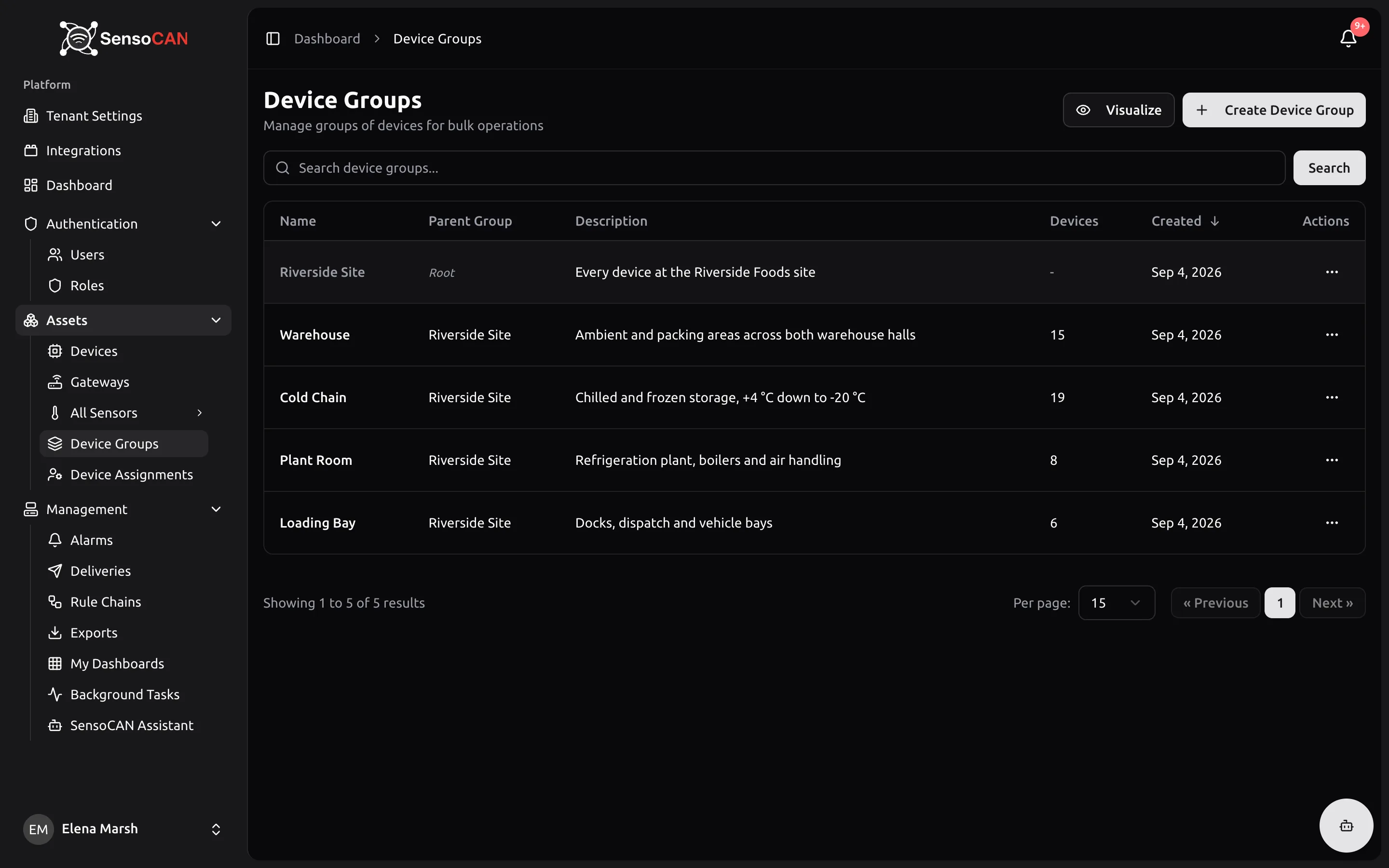
Assets → Device Groups is headed "Manage groups of devices for bulk operations", with Visualize and Create Device Group beside it. Search matches the name and the description. The columns are Name, Parent Group, Description, Devices and Created; the root row is greyed out and shows a dash for its device count. Device counts only ever include devices you are assigned to, so two people can legitimately see different numbers for the same group.
Visualize draws the whole hierarchy as an interactive tree, each node labelled "Root", "Parent" or with its device count. Click any non-root node to open it.
The group page
Open a group to get three things.
Group Information — name, description, created date and the device count.
Devices in Group — each member with its Location, Status and sensor count, linking through to the device.
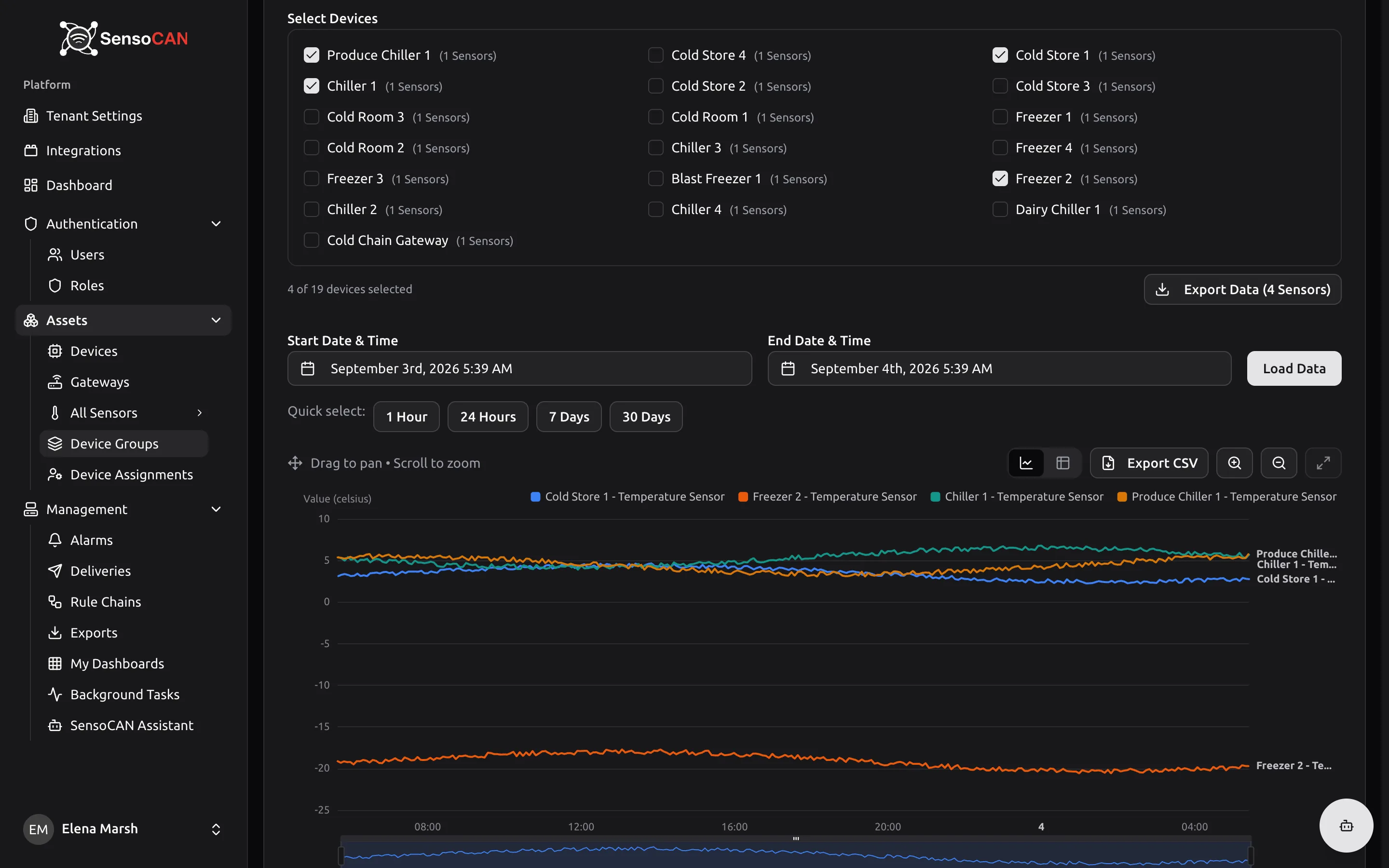
Sensor Readings Dashboard — View sensor data from all devices in this group is the reason most people open a group. Pick a Sensor Type (only types actually present in the group are offered), tick the devices you want, choose a date range and press Load Data. You get one chart with a series per device, so a run of freezers or a row of meters can be compared on a single set of axes. The first ten devices are selected for you and ten is the maximum at once; the counter reads "8 of 12 devices selected". The chart can be flipped to a table and exported as CSV, and Export Data builds a formatted export for the whole selection — see Exports.
Until you choose, the panel prompts "Select a sensor type to view the dashboard" and then "Select at least one device to view historical data".
Delete Group removes the group, not its devices. The confirmation warns that the group is permanently deleted and that the action cannot be undone; the devices simply stop being members.
Groups elsewhere in SensoCAN
On the Devices list, each device shows its groups as badges that link straight to the group page.
In dashboards, a widget can be bound to a device group instead of a single device, so it covers every member and keeps covering them as the membership changes. See Dashboards.
With the assistant, you can ask about your groups by name and get their device counts back, limited to the groups your account can see. See AI assistant.
Permissions
Viewing groups and exporting their data is available to every role, including plain users. Creating, editing and deleting groups is for administrators and managers. Whatever your role, a group only ever shows you the devices you are assigned to, and a group containing none of your devices does not appear at all — see Roles and permissions.