Exports
An export takes a range of sensor readings and turns it into a file you can open outside SensoCAN. Exports are generated in the background, so you can start one and carry on working; SensoCAN emails you when the file is ready.
Creating an export
You start an export from the data itself, not from the Exports page:
- On a sensor page, select Export Data.
- On a device group page, choose a sensor type and the devices you want, then select Export Data — the button counts the sensors your selection covers.
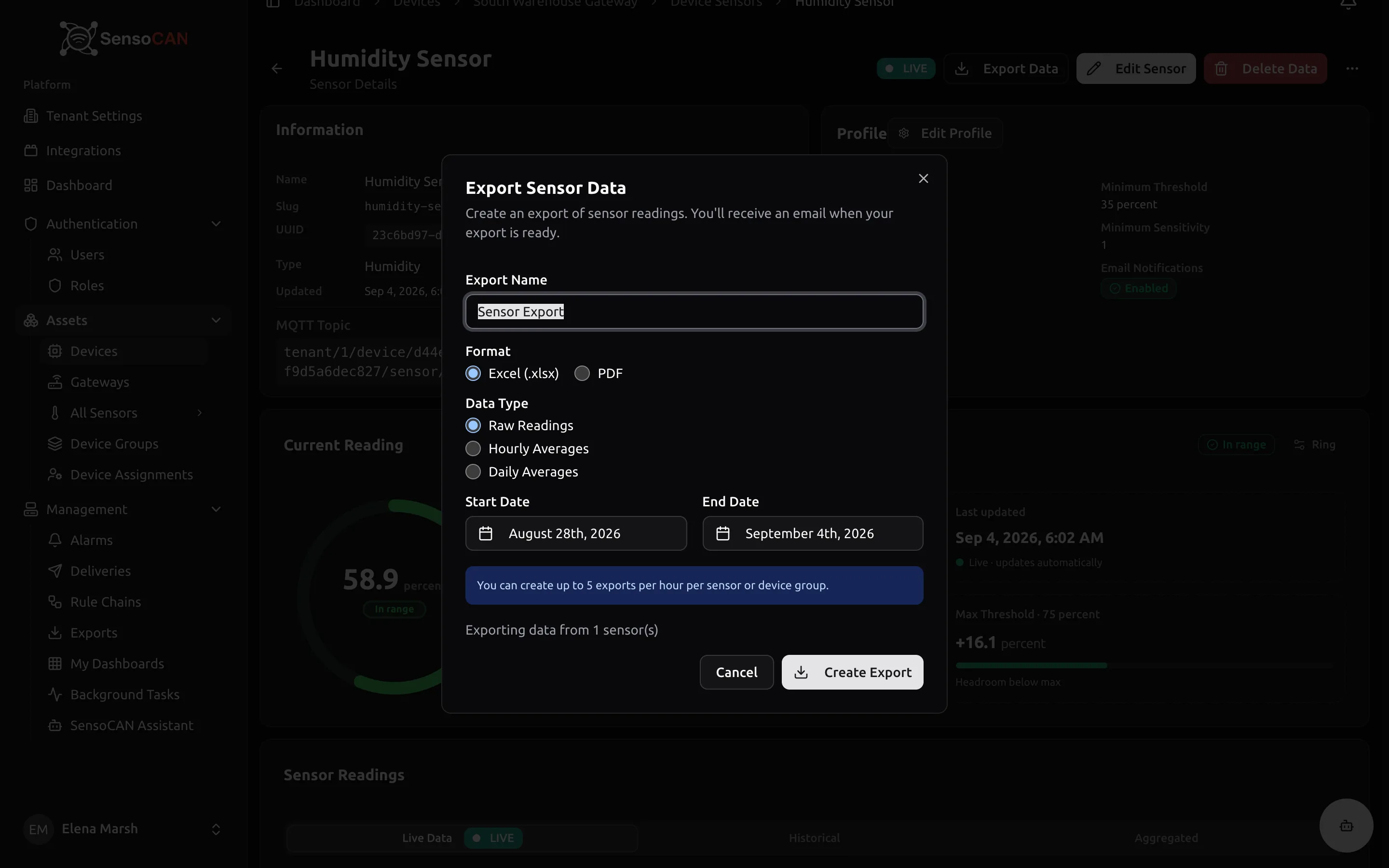
Either route opens the Export Sensor Data dialog, which explains that you will receive an email when your export is ready. Fill in:
- Export Name — how the export is labelled in your list. SensoCAN appends the device or group and the date range to whatever you type.
- Format — Excel (.xlsx) or PDF.
- Data Type — Raw Readings gives you every reading in the range; the averaged options summarise readings into buckets instead of listing each one.
- Start Date and End Date — the range to cover, pre-filled with the last week. The end must be after the start, and the dialog blocks submission with "Date range cannot exceed 30 days." if you ask for more.
A single export covers up to 50 sensors. A cap also applies to how many exports you can create per hour for the same sensor or device group, and the dialog states it.
For a wide range or several sensors at once, choose Excel. PDF output is capped at a limited number of records and keeps the earliest data in the range, so a large PDF export can end up truncated. The dialog warns you when your selection is likely to hit this.
On submit you land on the Exports page and see a confirmation that the request was created and that you will receive an email when it is ready.
While it is generated
The request is queued and processed in the background as a Sensor Export task. You can watch its progress on the Background Tasks page, and the Exports page itself refreshes on its own every ten seconds while anything is pending or processing.
One sensor produces a single .xlsx or .pdf file. Several sensors produce a .zip containing one file per sensor, and the format column shows ZIP in that case. An Excel export contains a summary sheet and a sensor data sheet, with a timestamp and value per row for raw readings, or timestamp, mean, minimum, maximum and count for the averaged types.
The Exports page
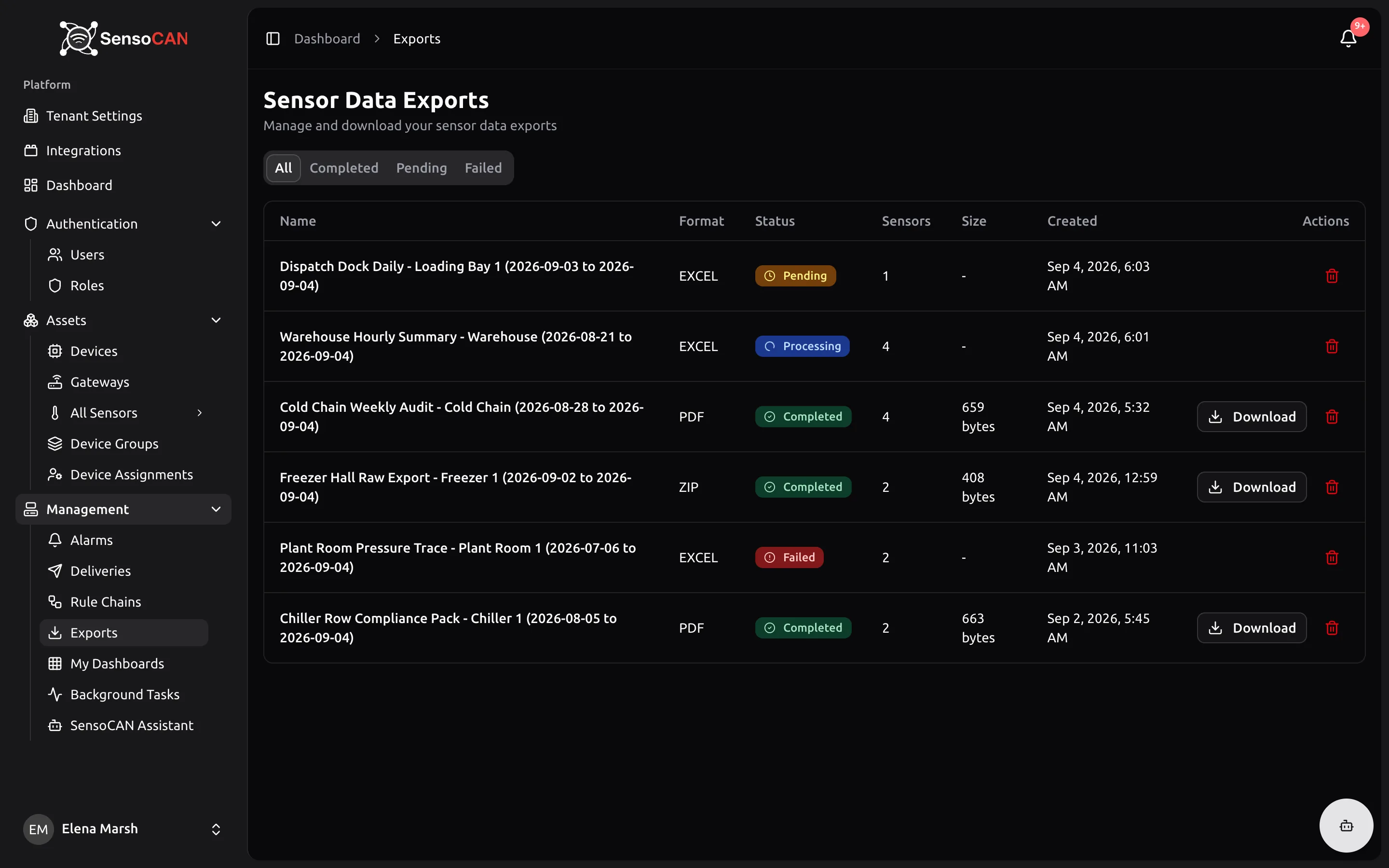
Open Management → Exports for Sensor Data Exports, where you manage and download everything you have requested.
Tabs filter the list by All, Completed, Pending (which includes exports currently processing) and Failed. Each row shows the export name, format, a status badge, how many sensors it covers, the file size, when it was created, and the available actions. Longer lists are paginated.
Where there is nothing to show, the page says "No exports yet" with a prompt to create your first export from sensors or device groups, or tells you to adjust your filters if a tab is empty because of them.
Downloading
A Download button appears on completed exports. Select it to save the file under a name built from the export name and today's date.
The completion email carries the same download button plus the details of what was generated, and attaches the file directly when it is small enough. If it is too large to attach, the email says so and you download it from SensoCAN instead.
Export files are kept for a limited period and are then removed automatically; the completion email states the date up to which the file stays available. Once an export has expired its Download button disappears, and the row stays in the list as a record of the request.
Use Delete on a row to remove an export permanently, file included. SensoCAN asks you to confirm first.
Permissions
Requesting an export, seeing exports, downloading them and deleting them are separate rights. Some roles see only their own exports while others see every export in the organisation, and not every role can delete. If an action described here is missing for you, see Roles and permissions.
Quick CSV from a chart
Not everything needs a background export. Sensor and device group charts have an Export CSV button that immediately downloads exactly what is on screen, including any zoom you have applied, as a CSV file. It is the fastest way to grab a small slice of data without waiting for an email.