Gateways & Beacons
A gateway lets you monitor places where wiring a device is impractical: a freezer, a trailer, a distant store room. Battery-powered Bluetooth beacons sit where the readings are, one mains-powered gateway sits within radio range, and SensoCAN turns what it relays into ordinary sensors.
"Which beacons have batteries running low?" — the assistant answers from your own data, in the app or in Slack. See Ask SensoCAN.
What a gateway is in SensoCAN
A gateway is created like any other device, but with its Device Class set to Gateway instead of Standard: "A gateway relays BLE beacons instead of sensing anything itself. This cannot be changed after the device is created." Three rules follow.
A gateway senses nothing of its own. Every reading filed under it came from a beacon.
Each beacon becomes sensors under the gateway. On registering a beacon, SensoCAN looks up the metrics its model reports and creates one sensor per metric on the gateway. A beacon named "Freezer 1" on a model reporting temperature and humidity gives you "Freezer 1 Temperature" and "Freezer 1 Humidity" — ordinary sensors from then on, see Sensors and Rule Chains.
A beacon belongs to exactly one gateway, and the set is fixed. Beacons do not roam: a second gateway that hears the same beacon stores nothing from it. A MAC can be registered only once across your organisation, so moving a beacon means deleting it and registering it on the other gateway.
Otherwise a gateway behaves like any device: status, last seen, groups, assignments, alarms. Hardware running your own firmware connects directly instead — see Device Connectivity.
How quickly a gateway is marked offline
A gateway reports far more often than a typical device, so it is created with an offline cutoff of 2 minutes where a standard device gets 5; any value from 2 to 1439 is allowed. A gateway's offline alarm is also on by default — the opposite of a standard device.
Commissioning a gateway
Create the device in SensoCAN, then copy what SensoCAN gives you into the hardware using your supported BLE gateway's configuration app.
Create the gateway device
In Devices, choose Add Device and set Device Class to Gateway. The class is fixed at creation — "The device class is fixed when the device is created and cannot be changed."
Choosing Gateway reveals one extra field, MQTT Client ID: 1 to 64 characters, letters, digits, dash or underscore, unique across the platform; leave it empty and one is generated.
Copy the commissioning values into the hardware
Open the gateway's Device Details page and choose MQTT Credentials. For a gateway-class device the dialog carries an extra Gateway Commissioning section, every value with a copy button — use it, because one wrong character means the gateway never connects.
It holds Username and Password, Broker Host and Broker Port (where the gateway connects), Client ID (its identity), Publish Topic (where it sends what it hears), Subscribe Topic (where it listens for your commands) and BLE Password.
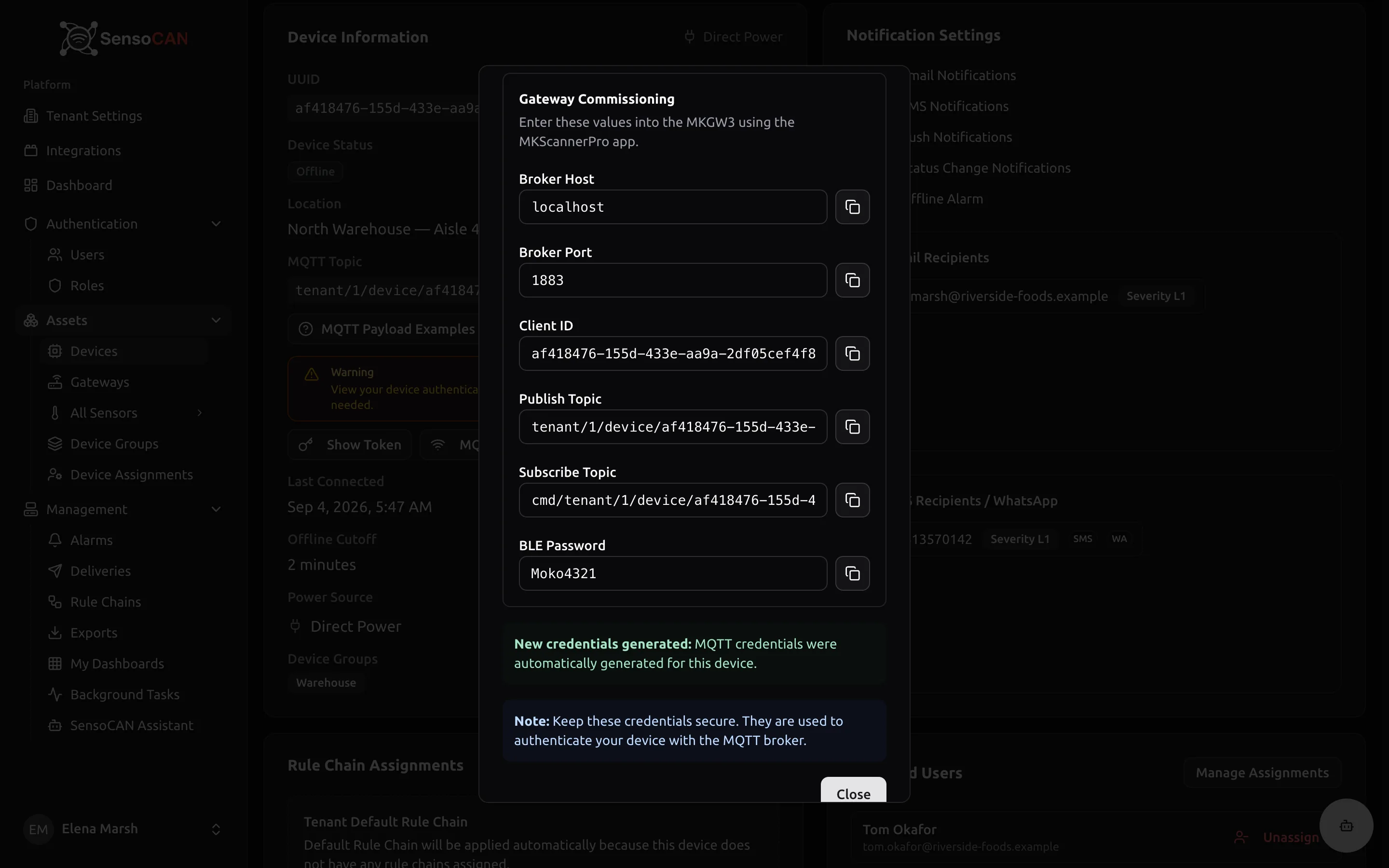
If BLE Password reads "No BLE password has been set for this account yet.", ask SensoCAN whether your beacons need one. The dialog requires the view MQTT credentials permission, held by Admin and Manager by default — see Roles & Permissions.
Your gateway's configuration app has a Last Will section: a message sent on the gateway's behalf if its connection drops without a clean goodbye. With it set, SensoCAN marks the gateway offline the moment that happens instead of waiting out the offline cutoff. The panel does not currently print the Last Will topic and message, so ask SensoCAN support for your gateway's values before you leave site.
Until the gateway sends its first message, SensoCAN does not know its hardware address and cannot address commands to it: the Gateways page shows MAC unknown until then, MAC known afterwards.
Registering the beacons a gateway relays
A gateway relays only beacons you have registered. On its Device Details page find the Beacons card, shown on gateway-class devices only. Its buttons, Import beacons (CSV) and Add beacon, need the add beacons permission.
Import beacons (CSV)
The dialog states the required header and lists what you may put in model on its Supported models line. Your file needs a header row:
| Column | Required | Contents |
|---|---|---|
mac | Yes | The beacon's 12-character hexadecimal address |
name | Yes | What you want to call the beacon, e.g. "Freezer 1" |
model | Yes | Exactly as spelled on the Supported models line |
location | No | Free text, e.g. "Kitchen, back wall" |
The reader forgives what spreadsheets get wrong: columns in any order, headers matched without regard to case, blank lines skipped, and the invisible marker Excel adds when you save as CSV UTF-8 tolerated, so exporting straight from Excel works. MAC addresses may be written with or without colons, in any case: AA:BB:CC:DD:EE:01 and aabbccddee01 are the same address, displayed uppercase with colons.
Upload one CSV file of up to 2 MB. The import is all or nothing: one bad row rejects the file rather than leaving half a fleet registered. Failures appear under The import was rejected, numbered as the lines in your spreadsheet with the header as line 1 — usually a malformed MAC, a missing name, an unsupported model, or a MAC already in use.
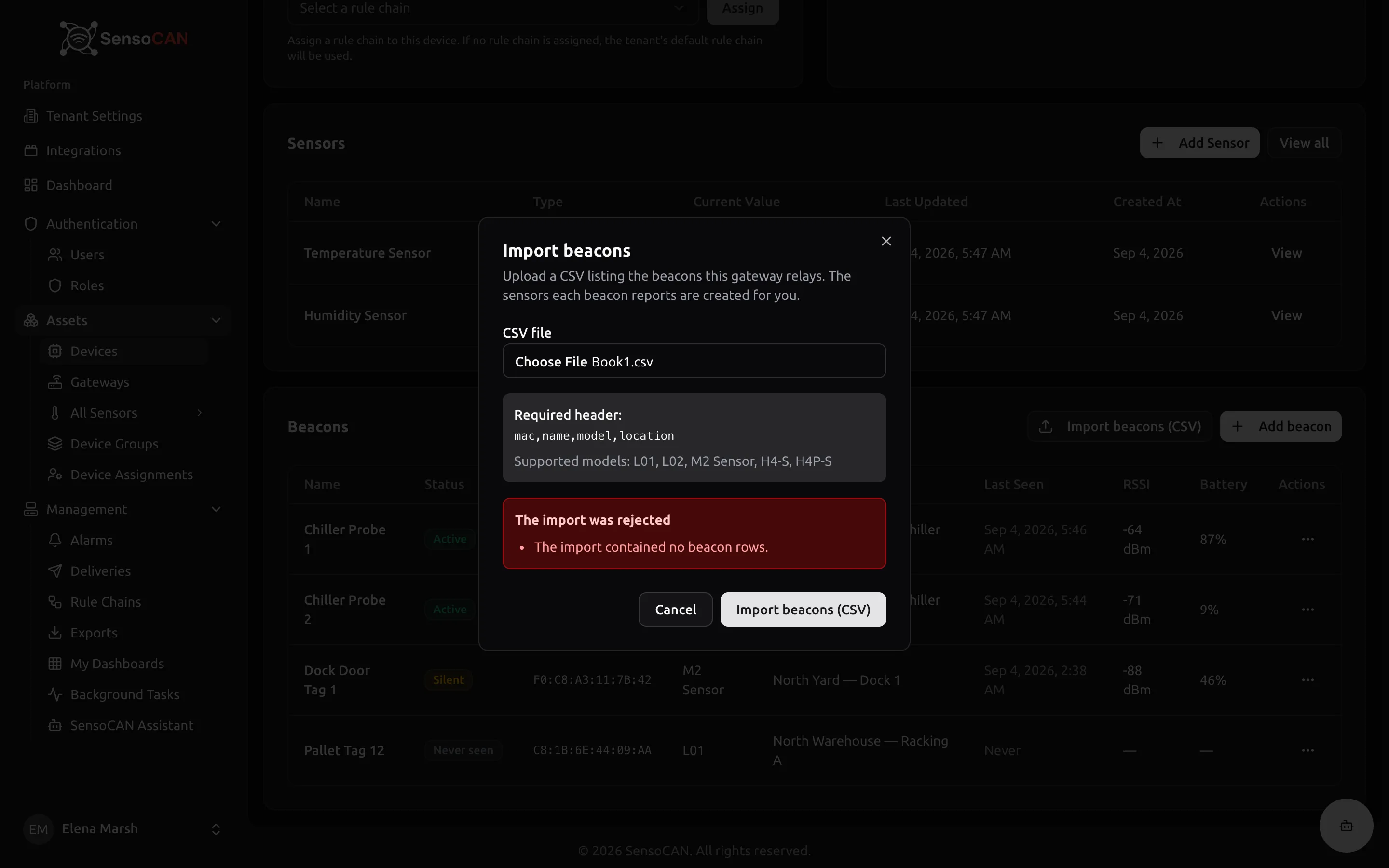
You are told how many beacons and sensors were registered. Each new beacon starts with an offline cutoff of 30 minutes, a low battery threshold of 20 per cent and offline alerts on, and its address is cleared from the gateway's Unknown MAC addresses list in Diagnostics.
Add beacon
For a single beacon, Add beacon applies the same rules as a one-row import: MAC Address (either format, hinting "Enter 12 hexadecimal characters, with or without colons." if what you typed cannot be an address), Name, Model and the optional Location. Submit stays disabled until the first three are filled in.
Editing a beacon
Edit in the row menu needs edit beacons and covers identity and alerting thresholds:
- Name — renaming the beacon renames its sensors' prefix too. Sensors you renamed by hand are left alone, and one whose new name would collide keeps its old name.
- MAC Address — "Changing the MAC re-points this beacon at a different physical device; sensors and history stay." Use it when swapping in an identical replacement.
- Location (optional).
- Offline cutoff (minutes) — 1 to 1439, empty for the default of 30.
- Low battery threshold (%) — 1 to 100, empty for the default of 20.
- Offline alerts — "Notify when this beacon stops reporting for longer than its cutoff."
Two cannot change. Model is read-only: "The model decides which sensors this beacon owns, so it cannot be changed here. To correct it, delete the beacon and add it again." The gateway it belongs to is fixed for the same reason.
Removing a beacon
Delete needs the delete beacons permission and asks "Remove this beacon?" first. The beacon goes with its sensors and their alerting, the readings already collected are kept, and the MAC becomes free to register again — nothing measured is lost, but any alarm on those sensors stops.
The beacon model catalog
The Model dropdown and the Supported models line come from a catalog SensoCAN maintains: each entry names a model and the metrics it reports, which decides the sensors your beacon gets. If your model is not listed, ask SensoCAN to add it. If one is withdrawn, imports naming it are rejected while beacons already on it keep collecting.
Beacon status at a glance
The Beacons card lists Name, Status, MAC Address, Model, Location, Last Seen, RSSI, Battery and a row menu. Missing values show as an em dash, and a beacon that never reported shows Never under Last Seen.
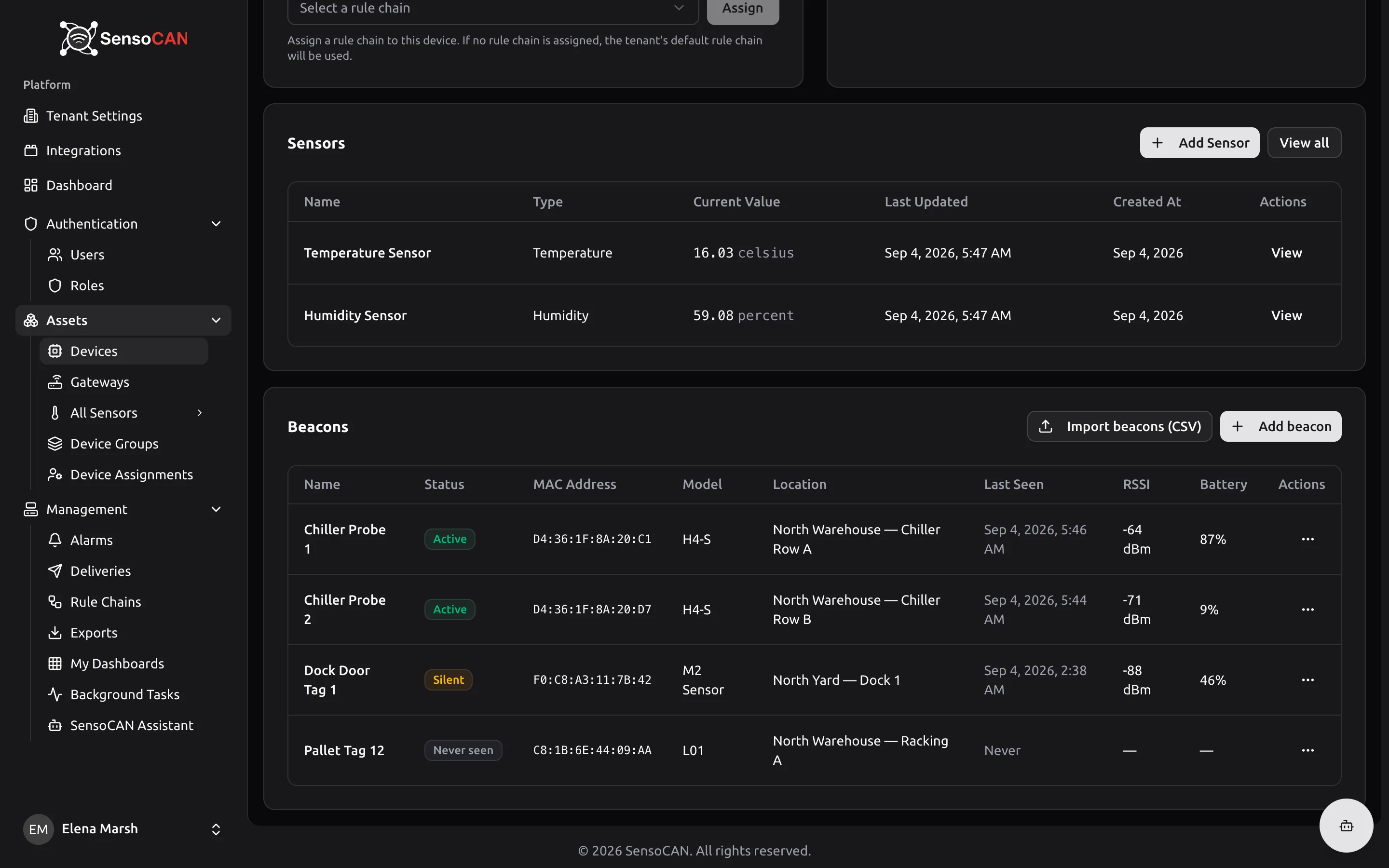
The status badge follows the beacon's offline cutoff and is re-checked every 30 seconds:
| Badge | Meaning |
|---|---|
| Active | A reading arrived within the beacon's cutoff — its own value, or 30 minutes if you have not set one |
| Silent | The last reading is older than that cutoff |
| Never seen | No reading has ever been received from this beacon |
Hovering the badge states the rule in force: "Counted as silent after 30 minutes without a reading (default)".
A beacon has no connection to lose. Its gateway can be healthy and relaying six others while this one says nothing — out of range, obstructed, flat or gone.
Battery and signal strength
Battery is the beacon's own charge as a percentage. RSSI is how strongly the gateway heard it, in dBm — always negative, closer to zero is stronger. A beacon drifting towards -90 dBm has moved or gained an obstruction.
Battery, RSSI and Last Seen update live while you watch, though not every few seconds: telemetry is recorded at most once a minute per beacon.
Beacon alerts
- Silent beacon. With Offline alerts on, SensoCAN checks every two minutes and alerts when a beacon has been quiet longer than its cutoff — one alert per silence episode, re-armed once it reports again.
- Low battery. A reading below the beacon's threshold raises one alert, at most one per beacon per 24 hours.
Both go to the gateway device's notification recipients and channels, because a beacon has none of its own — see Alarms.
What a beacon reports
A beacon's metrics are decided by its model's catalog entry. The models available today report temperature, humidity, or both, depending on the model, and their sensors behave like any other: they chart, export, feed rule chains and raise alarms. Battery and signal strength are not sensors but beacon telemetry, shown in the Beacons card.
The Diagnostics page
Everything a gateway hears but cannot turn into a stored reading is collected on one page. From Device Details, choose Diagnostics: "What this gateway heard but could not process, and what to do about it." Viewing needs view diagnostics, the page refreshes every 30 seconds, and Back to the device returns you.
Counters
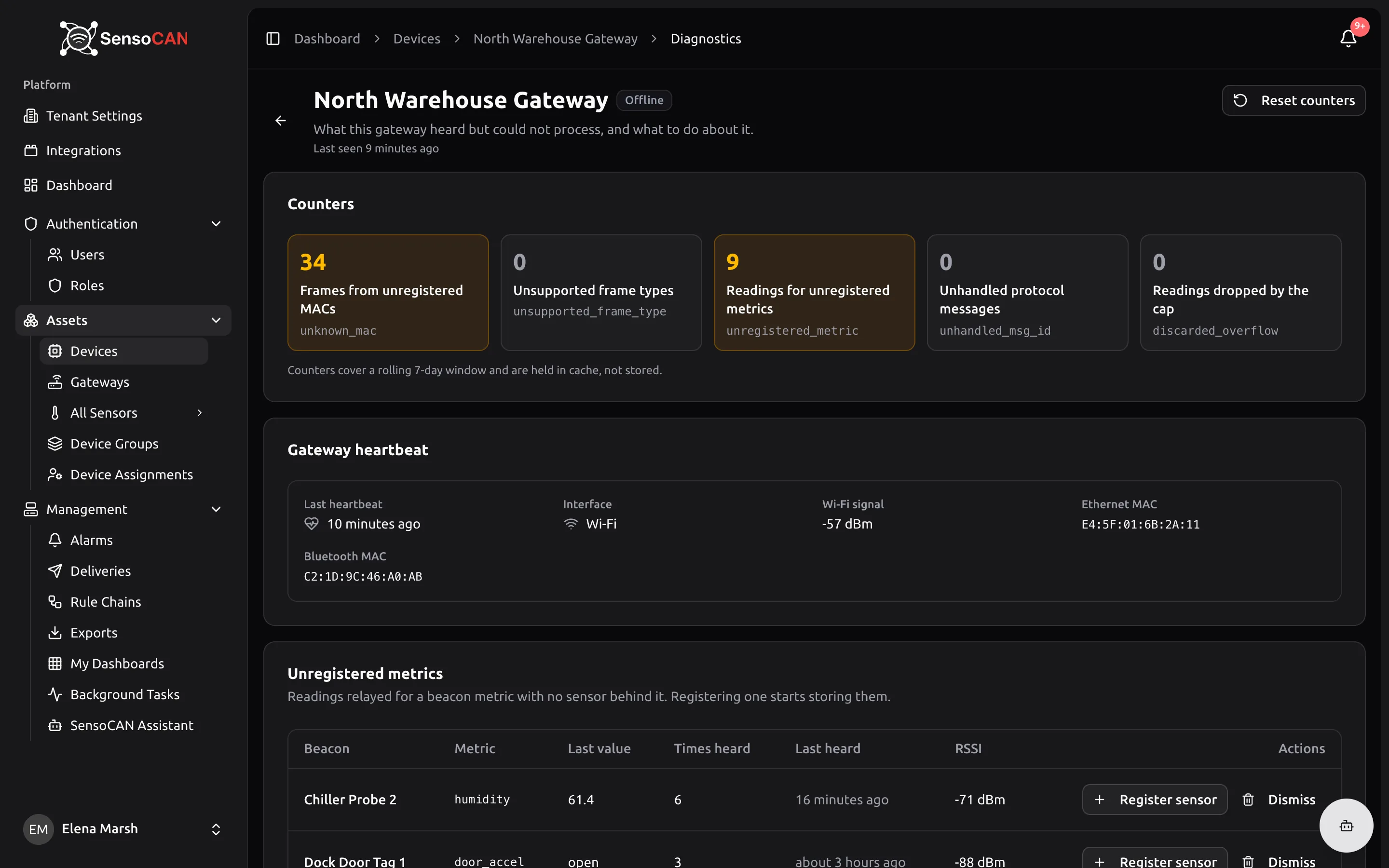
Five tiles cover a rolling seven-day window and turn amber when not zero:
| Counter | What it counts |
|---|---|
| Frames from unregistered MACs | Broadcasts from beacons not registered to this gateway |
| Unsupported frame types | Broadcasts in a format SensoCAN does not read |
| Readings for unregistered metrics | Readings for a metric with no sensor behind it |
| Unhandled protocol messages | Valid messages SensoCAN does not currently consume |
| Readings dropped by the cap | Readings discarded because one message carried more than SensoCAN accepts |
Three of them link down to the rows behind them.
Gateway heartbeat
The Gateway heartbeat card is the gateway talking about itself: Last heartbeat, Interface (Ethernet, Wi-Fi or Unknown), Wi-Fi signal, Ethernet MAC and Bluetooth MAC, or "No heartbeat recorded yet". A gateway that keeps dropping off Wi-Fi explains itself here.
Observations, and what to do about them
Unregistered metrics — "Readings relayed for a beacon metric with no sensor behind it. Registering one starts storing them." Each row names the beacon, the metric, its last value and how often it was heard. Register sensor, which needs add sensors, creates the missing sensor, and readings are stored from then on.
Unknown MAC addresses — "Beacons this gateway can hear that are not registered to it. Nothing they report is stored." Columns: MAC Address, Advertised name, Tag ID, Frame type, RSSI, Times heard, First heard, Last heard. Register beacon, which needs add beacons, opens the Add beacon dialog with the MAC and advertised name filled in; you still choose the model, because what a beacon broadcasts does not name it. Only the most recently heard addresses are kept.
Unhandled protocol messages — messages SensoCAN does not consume. No reading was expected from them, so nothing was lost.
Every row also offers Dismiss, which needs delete diagnostics: "Removes the row. It returns if the gateway reports it again."
Reset counters, and what it leaves alone
Reset counters, also gated on delete diagnostics, resets the rolling counters and clears the rows below them, which come back as the gateway reports again. It does not touch the rejected-messages log. Reset after fixing something, so a tile that goes amber again means a live problem.
Rejected messages
The last card lists messages received but unusable, with a badge counting them over the last seven days. Columns are Reason, Topic, Received and View, and the reasons read Unreadable topic, Malformed JSON, Unknown device, Could not be decoded and Too many frames in one message. View shows the start of the message with a copy button — useful evidence for support.
Gateway commands
The Gateways page
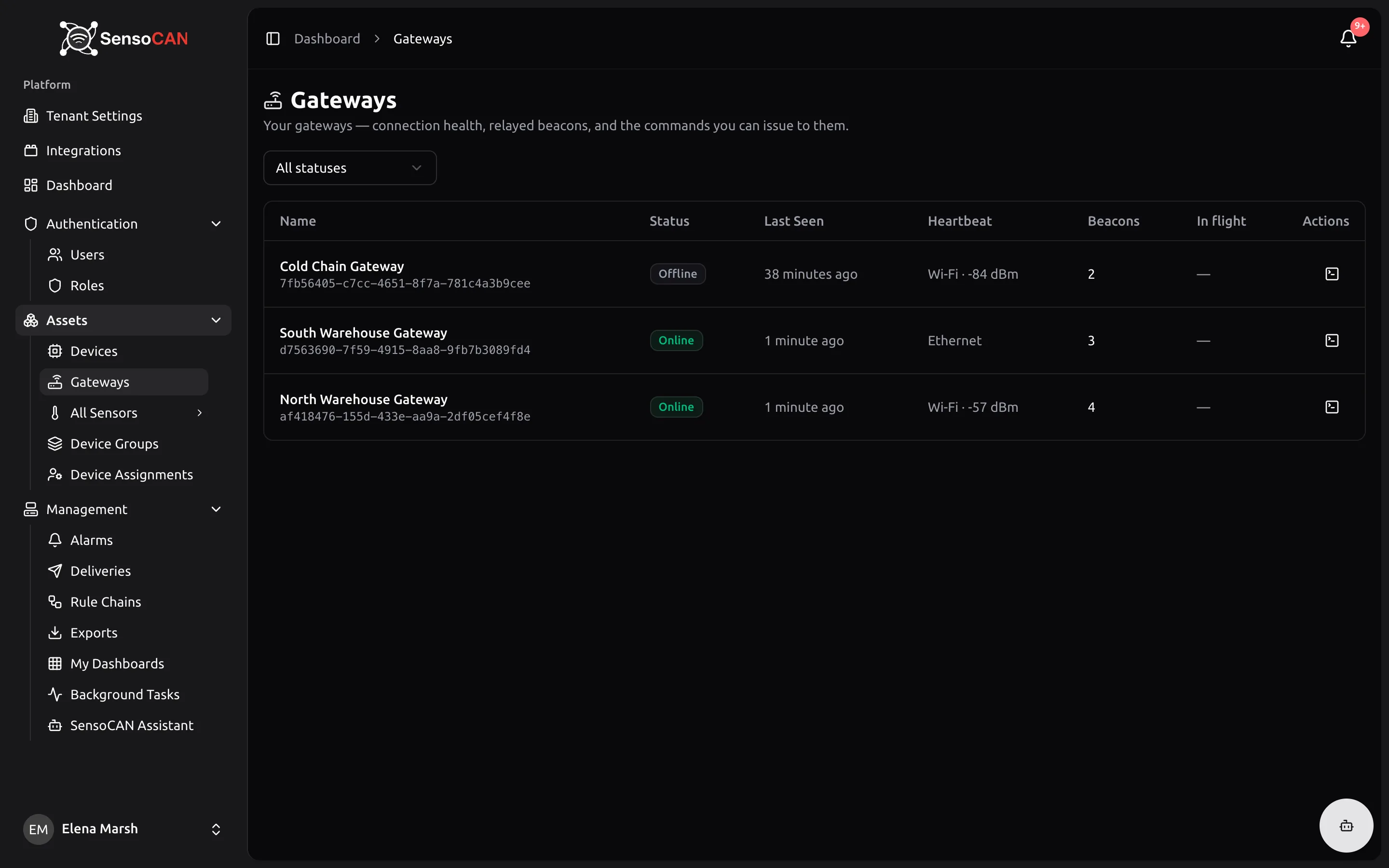
Open Gateways under Assets: "Your gateways — connection health, relayed beacons, and the commands you can issue to them." The table shows Name, Status, Last Seen, Heartbeat, Beacons (how many are registered), In flight (commands awaiting a reply) and an Open commands action. A status filter narrows the list and stays in the address bar, so a view can be shared, and the page refreshes every 30 seconds. Seeing it needs view gateways, which of the standard roles only Admin holds by default.
Which commands you can run
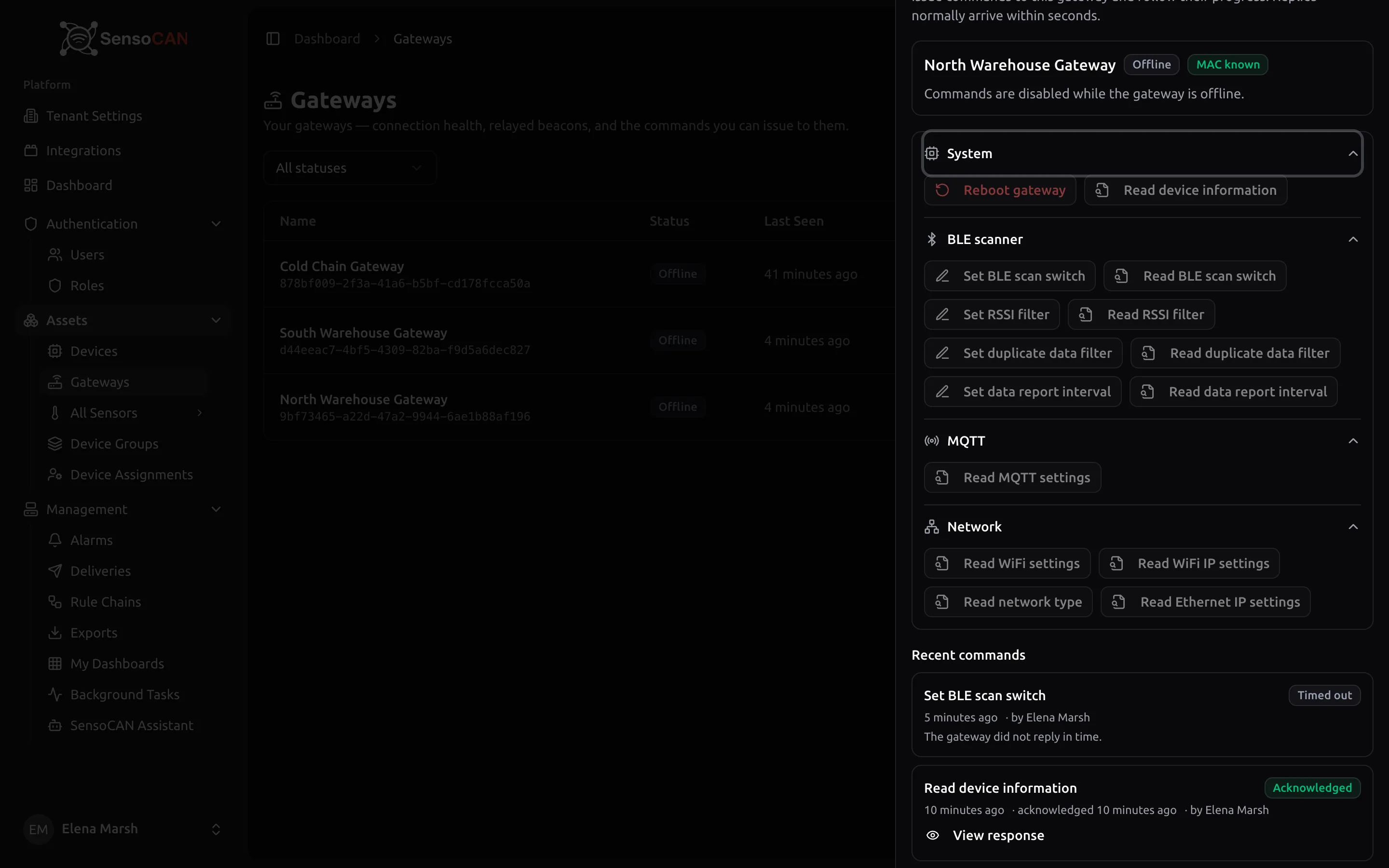
Clicking a row opens the Gateway commands drawer: "Issue commands to this gateway and follow their progress. Replies normally arrive within seconds." Commands are grouped under System, BLE scanner, MQTT and Network.
With view gateways you can run the reads: Read device information, Read BLE scan switch, Read RSSI filter, Read duplicate data filter and Read data report interval.
Manage gateways is needed for anything that changes a setting, and for the MQTT and Network reads:
- Set BLE scan switch — 1 turns BLE scanning on, 0 turns it off
- Set RSSI filter — -127 to 0 dBm; beacons weaker than this are dropped before relaying
- Set duplicate data filter — a rule from 0 to 3: 0 disables the filter, 1 filters by MAC, 2 by MAC and data type, 3 by MAC and raw data
- Set data report interval — 0 to 86400 seconds, where 0 reports in real time; this paces filtered reporting only — with the duplicate data filter off, the gateway forwards advertisements as they arrive regardless of this value
- Reboot gateway
- Read MQTT settings, and the Network reads: Read WiFi settings, Read WiFi IP settings, Read network type, Read Ethernet IP settings
Buttons you lack the permission for are disabled and say "Requires the manage gateways permission".
Firmware updates and changes to how a gateway connects to the platform are not offered here at any permission level, because a wrong value can leave a gateway unreachable. They are performed by SensoCAN support on request.
Filling in and confirming a command
A command that takes values opens a form — "The values below are sent to the gateway exactly as entered." — with each field's allowed range and a hint. Commands that interrupt the gateway show a red Proceed with caution panel — for a restart, "will restart, and its beacons stop relaying until it comes back online" — and require you to type the gateway's name before Issue command is enabled.
One at a time, and why
Only one instance of a command can be in flight per gateway: "This command is already in flight for this gateway. Wait for the reply or the timeout." The read and write halves of a setting count as one, so while Set RSSI filter is in flight, Read RSSI filter is held too, for everyone.
The status lifecycle
| Status | Meaning |
|---|---|
| Pending | Accepted by SensoCAN, not yet on its way |
| Sent | On its way to the gateway |
| Acknowledged | The gateway confirmed it, or returned the data you asked for |
| Failed | The gateway rejected it; its own reason is shown on the row |
| Timed out | No reply arrived in time |
A command unanswered after 120 seconds is closed as Timed out: "The gateway did not reply in time." The check runs on a cycle, so a row can sit a little longer before it flips. A timeout means the command was not confirmed rather than ignored — read the setting back before assuming.
Two conditions disable the whole drawer, with the reason in its header: "Commands are disabled while the gateway is offline." — nothing is listening, so a command would expire unheard rather than queue up — and "Commands are disabled until the gateway reports its MAC address — it does so with its first message."
History and responses
Recent commands lists the last 20 and refreshes every ten seconds while the drawer is open, showing each command's status, when it was issued and acknowledged, who issued it, and anything the gateway said. Where data came back, View response opens it with Raw JSON and Copy JSON. Passwords are never stored in a response, so a settings read is safe to share.
Consultants and gateways
An external consultant supporting your organisation reaches gateways exactly as you do: with your organisation selected they see the same Gateways page and command drawer, scoped to your data, and hold both gateway abilities — so a consultant can read settings, tune the BLE scanner and restart a gateway on your behalf. Beacon work and Diagnostics follow the permissions above. See the Consultant Guide for how that access is granted.