Mobile App
The SensoCAN mobile app puts your live device status, sensor readings, and alarms in your pocket. Use it to check on your fleet, look into a sensor's recent history, and acknowledge alarms from wherever you are. It's built for both iOS and Android.
The mobile app is under active development and release preparation, and availability may vary by device and account. If you don't see it available to you, contact your administrator or SensoCAN support.
Signing In
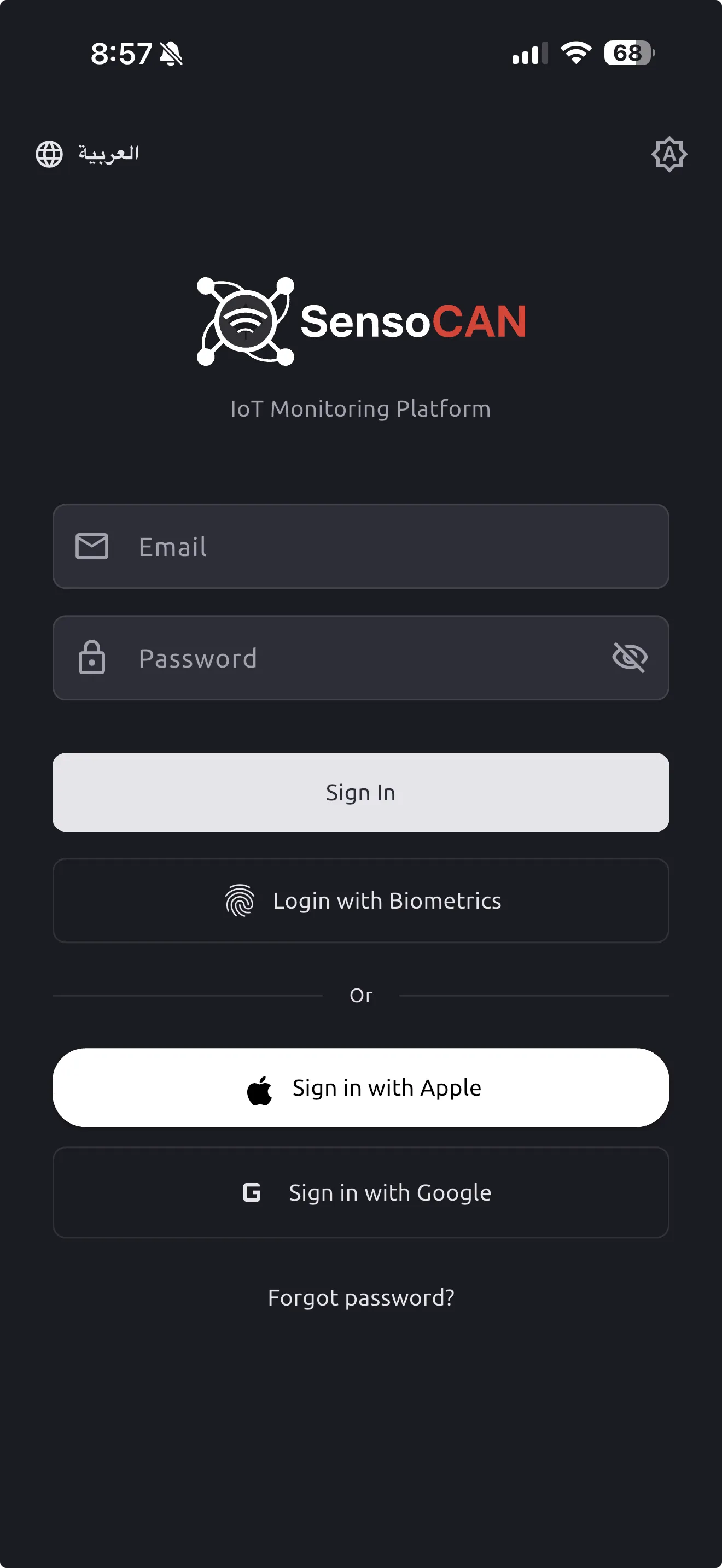
- Enter your email and password, the same credentials you use on the web.
- You can also sign in with Google, or, on iOS, with Sign in with Apple. Either option only works for an email that already has a SensoCAN account — the app doesn't support creating a new account.
- Forgotten your password? Use Forgot Password on the sign-in screen; it emails you a reset link that you complete on the web app.
- The sign-in screen also has toggles for language (English and Arabic) and light/dark theme, so you can set both before signing in.
- If you've turned on Biometric Login from your profile, the app offers fingerprint or face sign-in automatically next time you open it.
If two-factor authentication is enabled for your account, be aware the mobile app does not currently prompt you for a second-factor code at sign-in — your email and password alone are enough to get you in on the phone, even though the web app still asks for the second step. Check with your administrator if two-factor is part of your organisation's security requirements.
If your organisation's account is restricted (for example, placed on hold), you won't be able to sign in — you'll see a message that access is currently restricted. If it becomes restricted while you're already signed in, the app shows a full-screen notice with only a Sign Out option, until access is restored.
For your security, the app also signs you out automatically after about 120 minutes of inactivity, and you'll need to sign in again to continue.
Language and Theme
Beyond the toggles on the sign-in screen, you can change either setting any time from Profile:
- Language — English or Arabic.
- Appearance — System, Light, or Dark.
Devices
The devices list shows only the devices assigned to you, not every device on your account. Search by name, location, or ID; filter by status (Online, Offline, Error) or device group; sort by Newest first, Online first (the default), or Name; pull down to refresh, and scroll to load more.
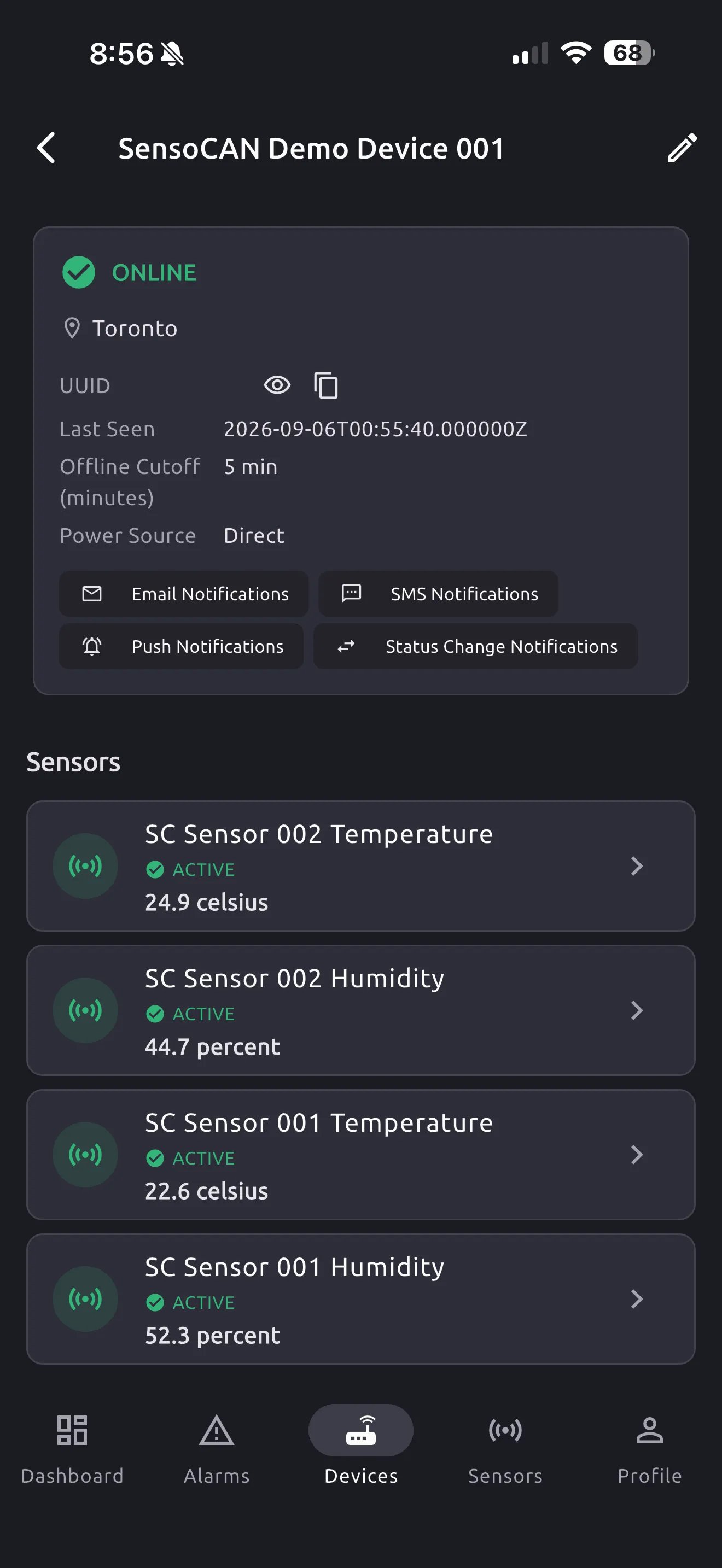
Open a device to see its status, location, ID (with a reveal-and-copy option), type, firmware, last-seen time, offline cutoff, power source and battery type, current notification settings, and its sensors with each one's latest value.
With permission to edit devices, an edit icon lets you change the device's name, location, offline cutoff (15–1439 minutes — the app enforces a slightly higher minimum than the web app), power source and battery type, and its alarm notifications: toggle Email, SMS, Push, and status-change alerts, and manage the email and SMS recipients for each severity — Default, Severity L1, Severity L2, and Severity L3.
If a recipient was set up on the web app for more than one channel (for example SMS plus another), saving the device's notification settings from the mobile app resets that recipient back to SMS only. Manage multi-channel recipients from the web app.
Creating a new device is web-only. See Devices for that and other management tasks not available on mobile. Editing a device requires permission — see Roles & Permissions.
Sensor Readings and Charts
The Sensors tab lists every sensor across your devices, with filters for activity (All, Active, Inactive) and sensor type, and search by sensor or device name. A sensor counts as Active if it has reported within its device's offline-cutoff window.
Open a sensor to see a gauge, a chart, and its reading history:
- Choose a preset range — 1 hour, 6 hours, 24 hours, 7, 30, or 90 days — or a custom range up to 365 days back.
- Shorter ranges show raw readings; longer ranges switch automatically to hourly or daily summaries.
If your account has permission to export sensor data, you can request an export (as Excel or PDF, and as raw, hourly, or daily data) for one sensor over a range of up to 30 days. The app only lets you request the export — go to the web app to see past requests and download the finished file.
Alarms
The alarms list shows every alarm you have access to:
- Filter by status (Open by default, Closed, or All), by acknowledgement (Unacknowledged, Acknowledged), and by severity (Critical, Major, Warning).
- Search by message, type, device, or sensor name.
- Each row shows its own open/closed, active/cleared, and acknowledged state, and an unacknowledged-alarm count badges the Alarms tab.
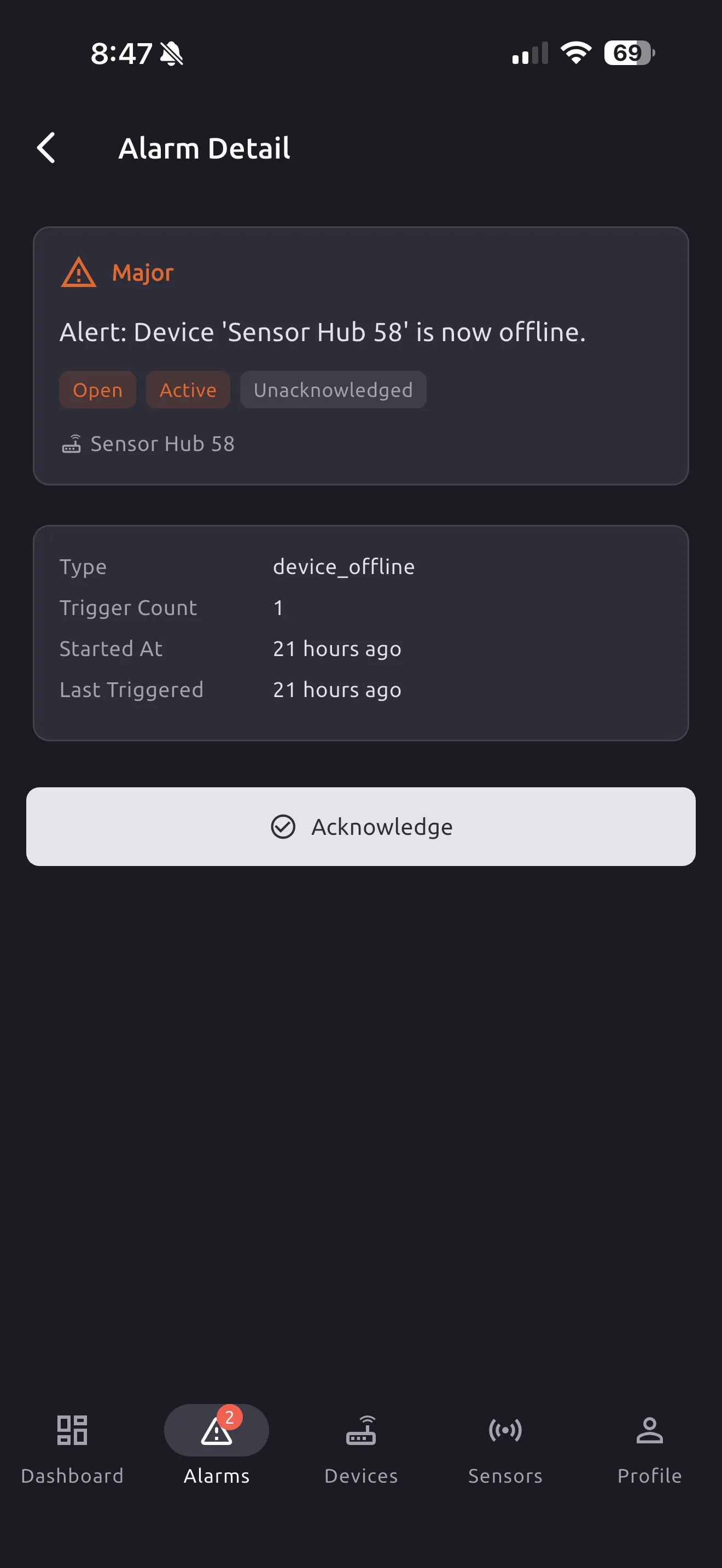
Open an alarm for full detail, or acknowledge it directly from the list. Acknowledging requires the right permission — if you don't see an Acknowledge button, ask an administrator to check your role's alarm permissions (see Roles & Permissions). If someone else acknowledges the same alarm first, you'll see a message that it was already acknowledged.
Creating or editing the alarm rules themselves — thresholds, conditions, and rule chains — is web-only. See Alarms for that.
Push Notifications
- On iOS, the app asks permission to send you notifications the first time you sign in.
- Tapping a notification takes you straight to the related device or alarm.
- While the app is open, a new alert appears as a banner at the top of the screen for a few seconds instead of a system notification; tap it to jump to your alarms.
- The app keeps no separate notification history — the Alarms list is always the up-to-date record of what's happened.
Profile and Settings
From Profile you can update your name, phone number, and time zone (a searchable list covering time zones worldwide); change your language and appearance (see above); turn on Biometric Login to sign in with your fingerprint or face — this asks for your password once to set it up, and switches itself off if your password is later changed elsewhere; and sign out.
Not available in the app — use the web app instead:
- Changing your password
- Creating new devices
- Downloading previously requested data exports
- Creating or editing alarm rules
- Custom dashboards
- Notification channel and delivery administration, including WhatsApp and per-recipient channel selection
- User, role, and device-group management, and device-to-user assignment
- Beacon and gateway administration
For account settings not covered here, see Account Settings.
Web vs Mobile
| Task | Mobile | Web |
|---|---|---|
| View devices, sensors, and readings | Yes | Yes |
| Per-device notification toggles and recipients | Yes | Yes |
| View and acknowledge alarms | Yes | Yes |
| Request / download a data export | Request only | Yes |
| Create a device, or edit alarm rules | No | Yes |
| Custom / kiosk dashboards | No | Yes |
| Change your password | No | Yes |
| WhatsApp and multi-channel notifications | No | Yes |
| Manage users, roles, and device groups | No | Yes |